
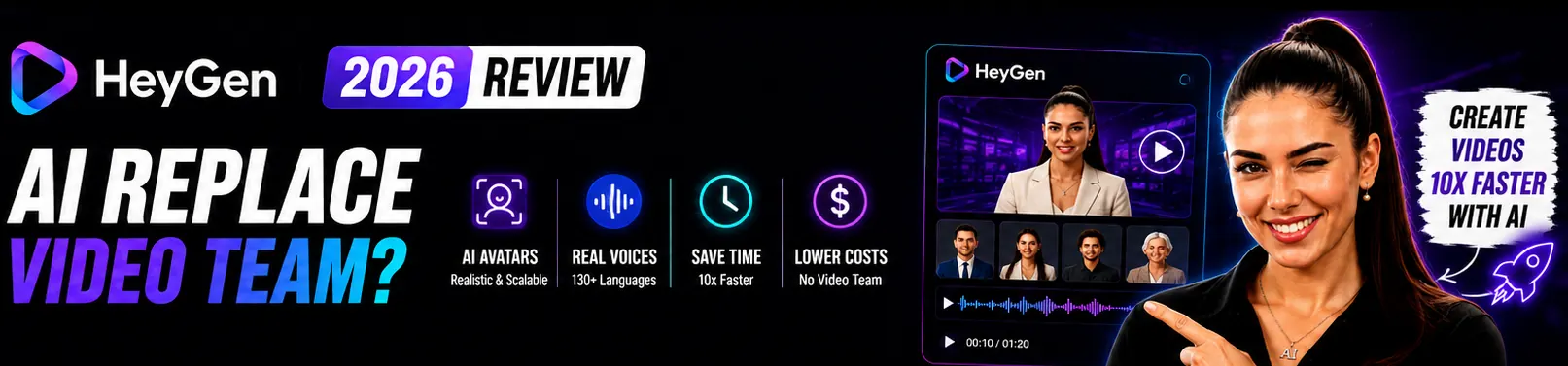
HeyGen promises to turn a text script into a polished AI presenter video in minutes. If you have never used the platform before, that promise can feel abstract. This guide makes it concrete — here is exactly how to go from zero to your first published video in 15 minutes, using the free plan.
Table of Contents
- 1 What You Need Before You Start
- 2 Step 1 — Create Your Free Account (2 minutes)
- 3 Step 2 — Start a New Video Project (1 minute)
- 4 Step 3 — Choose Your Avatar (2 minutes)
- 5 Step 4 — Add Your Script (3 minutes)
- 6 Step 5 — Select a Voice (1 minute)
- 7 Step 6 — Customize the Layout (2 minutes)
- 8 Step 7 — Preview and Generate (2-3 minutes)
- 9 Step 8 — Download and Publish
- 10 What to Try Next
- 11 HeyGen Free Plan vs Creator Plan
- 12 Verdict
- 13 Frequently Asked Questions
What You Need Before You Start
- A HeyGen account: Free at heygen.com — no credit card required
- A script: 100-300 words for your first video. Write it in a text editor first.
- 15 minutes: Seriously — your first video can be live in under 15 minutes
You do not need a camera, microphone, video editing software, or any technical experience. HeyGen runs entirely in your browser.
Step 1 — Create Your Free Account (2 minutes)
- Go to heygen.com
- Click Get Started Free
- Sign up with Google or your email address
- Verify your email if prompted
The free plan activates immediately — no payment information required. You get 3 videos per month at 720p resolution on the free plan.
Step 2 — Start a New Video Project (1 minute)
- From the HeyGen dashboard, click Create Video
- Choose Template to start with a pre-built layout, or Blank if you want to build from scratch
- For your first video, start with a template — choose a professional presentation style
Step 3 — Choose Your Avatar (2 minutes)
HeyGen offers 700+ stock avatars on paid plans and 50+ on the free plan. Browse the avatar library and select one that matches your content’s tone:
- Professional/corporate: Suited presenter, business casual, formal
- Casual/friendly: Relaxed attire, approachable style
- Animated: Non-realistic avatar styles for specific brand aesthetics
For your first video, choose any avatar that feels right for your audience. You can always change it later — the avatar selection does not affect your script.
Step 4 — Add Your Script (3 minutes)
- In the editor, find the Script panel
- Type or paste your script text into the script field
- HeyGen previews which parts of your script align with which video slide if you are using a template
Script tips for first-time users:
- Write in short sentences (under 20 words) — they sound more natural when spoken
- Avoid complex punctuation that might confuse the voice synthesis
- Read your script aloud before submitting — if it sounds awkward read aloud, the avatar will deliver it awkwardly too
- Keep your first video under 90 seconds — a 150-200 word script works well
Step 5 — Select a Voice (1 minute)
HeyGen’s voice library includes 300+ options across accents and languages. From the voice selector:
- Browse by language, gender, and accent
- Click the play button on any voice to preview it
- Select the voice that best matches your content’s tone
On the free plan, you have access to a substantial subset of the voice library. Voice cloning (using your own voice) requires the Creator plan — but stock voices work very well for a first project.
Step 6 — Customize the Layout (2 minutes)
If you are using a template, the layout is mostly set. Basic customizations:
- Background: Change to a solid color, image, or video background
- Avatar position: Adjust where the avatar appears in the frame
- Text overlays: Add title text, lower thirds, or captions
Do not spend too long here for your first video. The script and avatar quality matter more than layout for initial testing.
Step 7 — Preview and Generate (2-3 minutes)
- Click Preview to see a fast low-quality render of your video. Check that the lip-sync looks correct and the pacing sounds natural.
- Make any script edits needed based on the preview
- Click Submit to generate the full-quality video
- HeyGen renders the video — typically 5-15 minutes. You will receive a notification.
Step 8 — Download and Publish
Once rendered:
- Click Download to export the MP4 file
- Upload to YouTube, LinkedIn, your website, or any video platform
- Free plan videos include a HeyGen watermark — upgrade to Creator to remove it
What to Try Next
After your first video, explore these features to get more from HeyGen:
- Try different avatars — the same script in a different avatar completely changes the video’s feel
- Test SSML pauses — add
<break time="0.8s"/>between sentences for more natural pacing - Explore translations — upgrade to Creator and translate your video into a second language to test the multilingual feature
- Build a custom avatar — Creator plan lets you train an avatar on your own face for personalized video content
HeyGen Free Plan vs Creator Plan
After using the free plan:
- Free: 3 videos/mo, 720p, HeyGen watermark, 50+ avatars, 30+ languages
- Creator ($29/mo, $24/mo annual): Unlimited videos, 1080p, no watermark, 700+ avatars, 175+ languages, voice cloning, video translation, 1 custom avatar
Most users upgrade after their first 3 free videos — once they see the quality and understand the workflow, the Creator plan value is obvious.
Verdict
HeyGen’s interface is genuinely beginner-friendly. The free plan is enough to make real, publishable content. Your first AI video in 15 minutes is not an exaggeration — it is the standard first-session experience for most new users.
Start free today. Create your first video. Then decide whether the Creator plan is right for your use case based on actual experience, not speculation.
Frequently Asked Questions
Is HeyGen free to start?
Yes. HeyGen offers a free plan with 3 videos per month, 720p quality, and no credit card required. It is free to sign up and start creating immediately.
How long does HeyGen take to generate a video?
The preview render is near-instant. Full-quality render takes 5-15 minutes depending on video length and current server load.
Do I need to download any software to use HeyGen?
No. HeyGen runs entirely in your web browser. No downloads, no installations.
Can I use HeyGen on my phone?
HeyGen’s editor is browser-based and works on mobile, but the full desktop experience provides a better interface for script editing and layout customization.