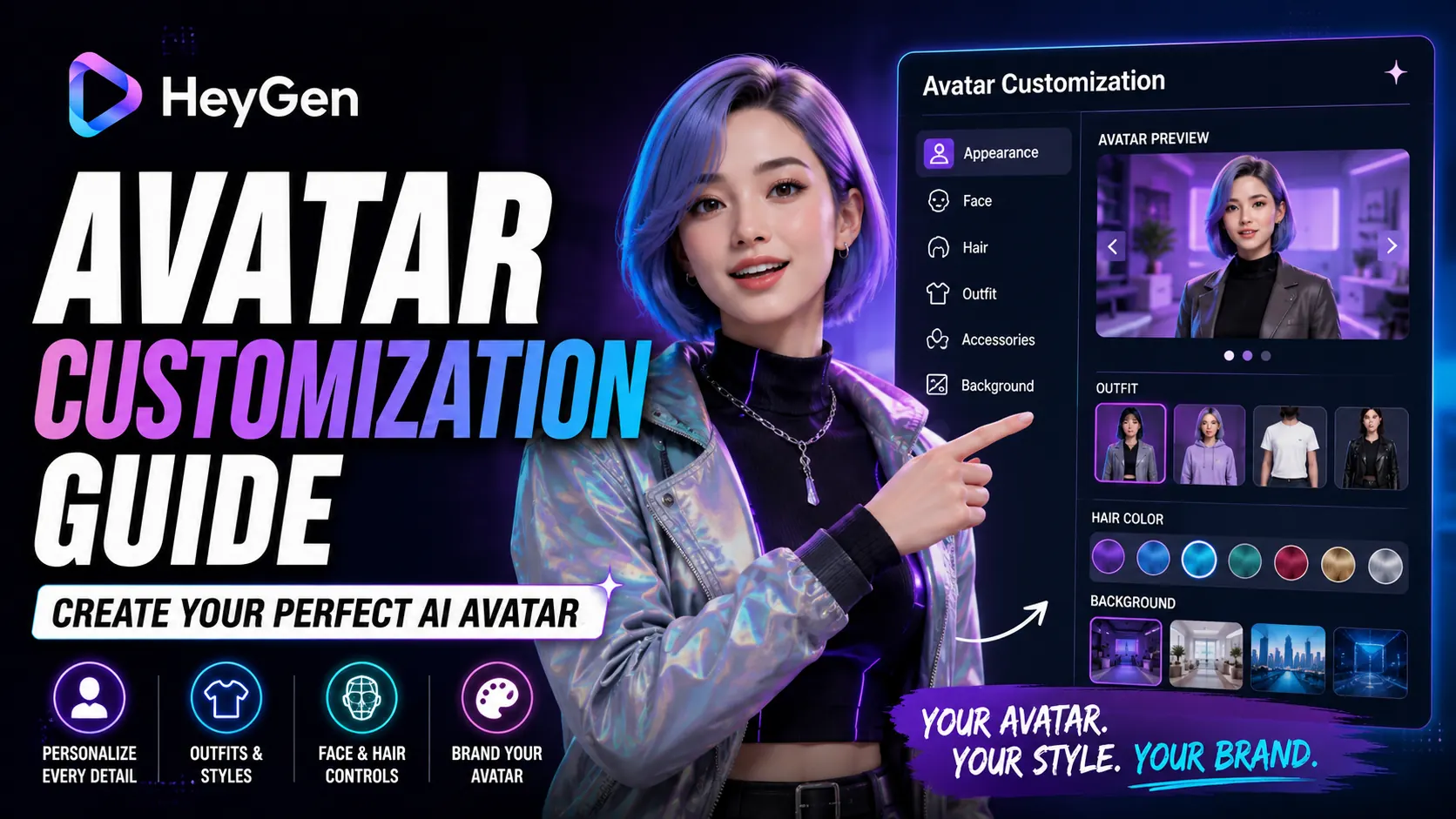
HeyGen’s custom avatar feature is the capability that makes AI video production feel genuinely personal. Instead of using a stock presenter that looks nothing like you, you train HeyGen on your own face and voice — and your digital twin delivers every future script you write, in your appearance and voice, without you ever needing to be on camera again.
In 2025, Avatar IV custom avatars are the most realistic AI-generated presenter footage available. This guide shows you exactly how to set one up, what to expect, and how to get the best possible result from your training footage.
What Is a Custom Avatar in HeyGen?
A custom avatar is an AI model trained specifically on your face, expressions, and movement patterns from video footage you provide. Once trained, HeyGen can generate video of your avatar saying anything you write — with natural gestures, synchronized lip movements, and realistic micro-expressions.
Custom avatars are available on the Creator plan ($29/mo) and above. The Creator plan includes one custom avatar. The Business plan supports multiple custom avatars for team workflows.
Requirements Before You Start
Before recording your training footage, make sure you have:
- Camera: Any modern smartphone or webcam records sufficient quality. 1080p is recommended. 4K is ideal but not required.
- Lighting: Even, front-facing light. Avoid strong backlighting or harsh shadows on your face. A ring light or positioned desk lamp works well.
- Background: Plain, neutral background strongly preferred. Complex backgrounds can interfere with avatar training quality.
- Microphone: Clean audio matters. Use an external mic or a USB conference mic if available. Built-in laptop mics often capture room noise.
- Time: Plan for 10-15 minutes of recording + 24-48 hours of HeyGen processing before your avatar is ready.
Step-by-Step: Creating Your Custom Avatar
Step 1 — Record Your Training Footage
HeyGen requires a minimum of 2 minutes of clean footage, but 5-10 minutes produces noticeably better avatar quality. Here is what to do during recording:
- Speak naturally — imagine you are presenting to an audience
- Look directly at the camera (not at a script off to the side)
- Vary your expressions slightly — nod, pause, smile naturally. Monotone reading produces a flatter avatar.
- Use natural hand gestures if you are recording full-body or half-body footage
- Speak clearly and at a natural pace — do not rush or over-enunciate
What to say: The content does not matter for training. Read a blog post, explain something you know well, or record a practice lesson. HeyGen only needs your facial patterns and voice data.
Step 2 — Upload Your Footage to HeyGen
- Log into HeyGen and navigate to Avatars → Create Avatar
- Select Instant Avatar for faster processing (lower quality) or Studio Avatar for full Avatar IV quality (24-48h processing)
- Upload your MP4 footage and submit for processing
Instant Avatar vs Studio Avatar:
- Instant Avatar: Ready in minutes, good for quick testing. Quality is strong but noticeably below Studio Avatar for long videos.
- Studio Avatar: Full Avatar IV processing. 24-48 hours to complete. This is the option that produces publication-ready results.
Step 3 — Review and Approve Your Avatar
HeyGen notifies you (email + dashboard) when your avatar is ready. Before approving, HeyGen will show you a sample test video. Watch it carefully:
- Lip sync accuracy — does the mouth movement match the audio?
- Expression naturalness — do head movements and facial expressions look natural?
- Skin and hair rendering — is the overall appearance realistic?
If the quality does not meet your standard, you can request a reprocessing with new footage. Common issues (background interference, poor lighting) are almost always fixable with better recording conditions.
Step 4 — Add Voice Cloning
A custom avatar without voice cloning speaks in a generic HeyGen voice. To complete the personal experience, add your cloned voice:
- Navigate to Voices → Create Voice Clone
- Record or upload a clean 2+ minute audio sample of yourself speaking naturally
- HeyGen processes the sample in 2-5 minutes
- Your cloned voice appears in the voice selector
Combined with your custom avatar, voice cloning creates a presenter that is recognizably you across every video — without requiring you to be on camera.
Tips for the Best Custom Avatar Quality
Lighting is the Biggest Variable
Poor lighting is the #1 reason custom avatars underperform. Even, soft front-lighting gives HeyGen the clearest data to work with. A $30 ring light makes a measurable difference compared to relying on ambient room lighting.
Avoid Movement During Recording
Keep your head position relatively stable. Natural movement is good — but excessive looking away from camera, walking, or significant position changes make it harder for HeyGen’s model to learn your facial patterns accurately.
Record More Than the Minimum
The difference between a 2-minute and an 8-minute training recording is significant. More footage = more data = better avatar. If you can invest 10 minutes of recording time, do it — the long-term quality improvement is worth it.
Use Studio Avatar, Not Instant Avatar, for Published Content
Instant Avatar is fine for testing. For content you’ll publish, always use Studio Avatar (Avatar IV quality). The 24-48 hour wait is worth it — the quality difference in published content is significant.
What to Expect After Your Avatar Is Live
Once your Studio Avatar is approved, you can use it for unlimited video generation on the Creator plan. Standard avatar generation (without Avatar IV premium model) does not consume credits — you can generate as many standard videos as you need.
Avatar IV videos consume 20 Premium Credits per minute of video. The Creator plan includes 200 Premium Credits per month — roughly 10 minutes of Avatar IV output. For heavier Avatar IV use, upgrade to Pro or purchase additional credit packs.
Pros and Cons of HeyGen Custom Avatar
- Pro: Preserves personal brand identity across unlimited future videos
- Pro: Studio Avatar IV quality is the most realistic AI presenter available
- Pro: One-time setup — use indefinitely after training
- Pro: Works across 175+ languages with video translation
- Con: Studio Avatar requires 24-48h processing time
- Con: Avatar IV consumes Premium Credits (20/minute)
- Con: Poor recording conditions produce weaker avatars
Verdict
Custom avatar creation is HeyGen’s most powerful feature for creators who want to maintain personal brand consistency at scale. The setup investment is real — quality recording, 48-hour processing, voice cloning setup — but it is a one-time cost against unlimited future video output.
If you publish video content regularly under your own name, the custom avatar transforms your production workflow permanently. Start with the free plan to test HeyGen’s interface, then upgrade to Creator for the full avatar experience.
Frequently Asked Questions
How long does it take to create a custom avatar in HeyGen?
Recording your training footage takes 5-10 minutes. Instant Avatar processing is done in minutes. Studio Avatar (Avatar IV quality) takes 24-48 hours to process.
What plan do I need for a custom avatar?
Custom avatar creation requires the Creator plan ($29/mo) or above. Creator includes 1 custom avatar. Business plans support multiple avatars for teams.
Can I create multiple custom avatars?
The Creator plan includes 1 custom avatar. Additional custom avatars are available by upgrading to Business or purchasing add-ons.
How realistic will my custom avatar look?
With good lighting, 5+ minutes of recording, and Studio Avatar processing, HeyGen’s Avatar IV produces very realistic results for professional video content. Viewers familiar with you will recognize the likeness; casual viewers will often not identify it as AI-generated.
What if I am not happy with my custom avatar quality?
HeyGen allows you to request reprocessing with improved footage. Most quality issues trace back to recording conditions — better lighting and a longer recording usually resolve the problem.