
The basic version of Leonardo AI is available for free, although it comes with a daily limit of 150 tokens. For those who need more capabilities and fewer restrictions, premium plans start at $10 per month. However, the free version is sufficient for most beginners. It is recommended to try the free version before opting for the paid one. Here is your guide to creating images with Leonardo AI.
Here are 5 steps to get started with Leonardo AI:
Start:
Go to the Leonardo AI App:
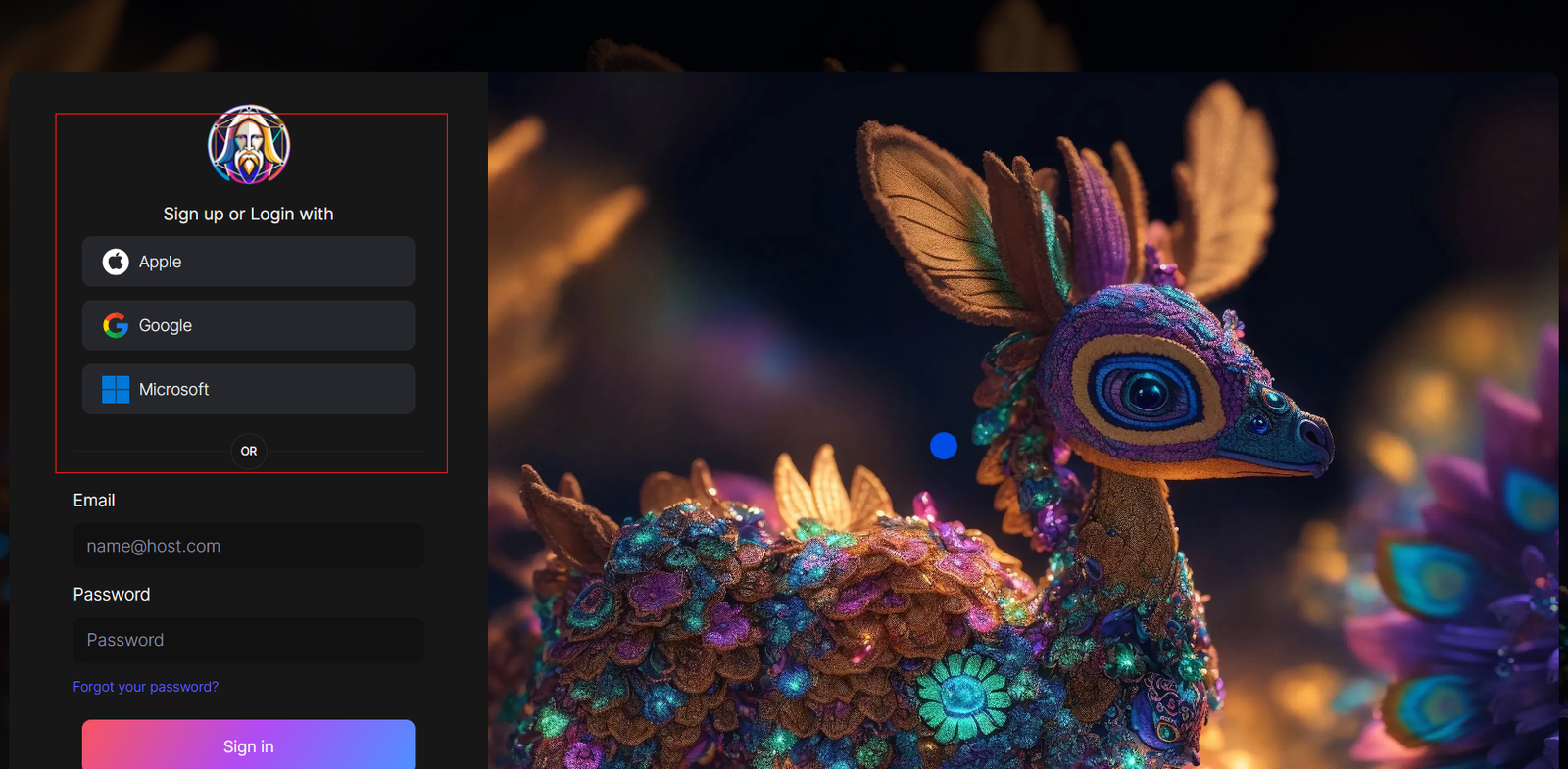
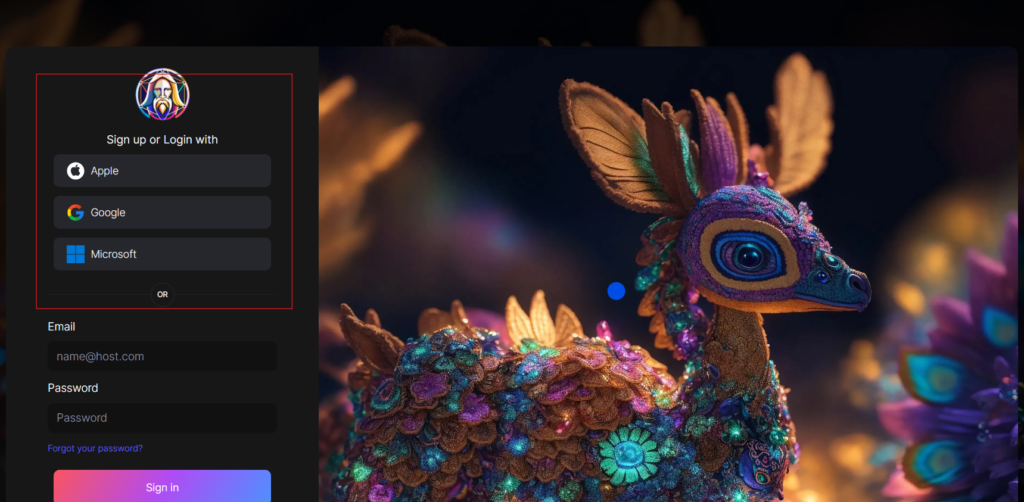
You can sign in with your Apple, Google, Microsoft account, or email account. Then, sign in with your newly created account.
Navigate to the image creation tool
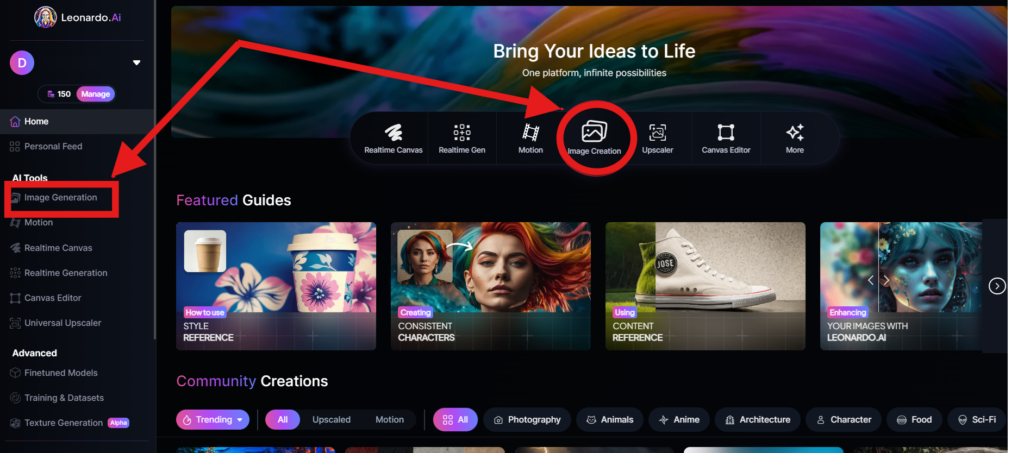
On the app.leonardo.ai homepage, select the ‘Image Generation’ option from the left panel, click on the icon in the middle or use the ‘Image Creation’ button located in the middle
Create your first image
In the prompt field at the top you can immediately create your desired Image. Or you can also create a reminder with the available AI suggestions in 2 ways:
+ Generate a random photo: 1, Click to “New Random Prompt” then 2. click Generate
+ Create a photo with an AI description by an image that you want to get the original idea. Then you edit according to your creativity
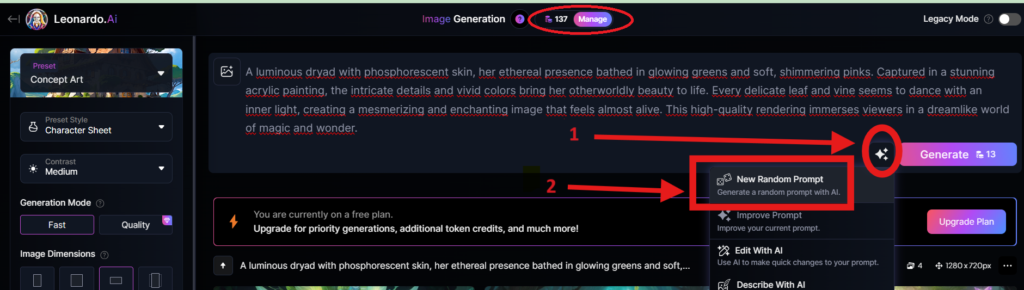
Wait about 20 seconds for Leonardo AI to generate the images, and you will receive four stunning high-resolution images as follows:
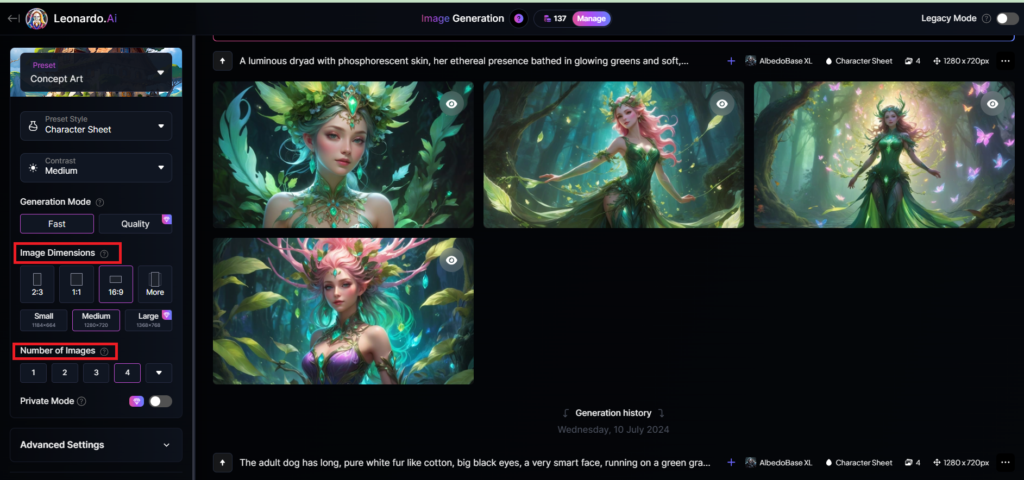
You can select the image size in the “Image Dimensions” section, which includes sizes like 2:3, 1:1, 16:9, and more options under “More” on the left. Alternatively, you can choose the number of images in the “Number of Images” section, with a maximum of 8 images that can be generated.
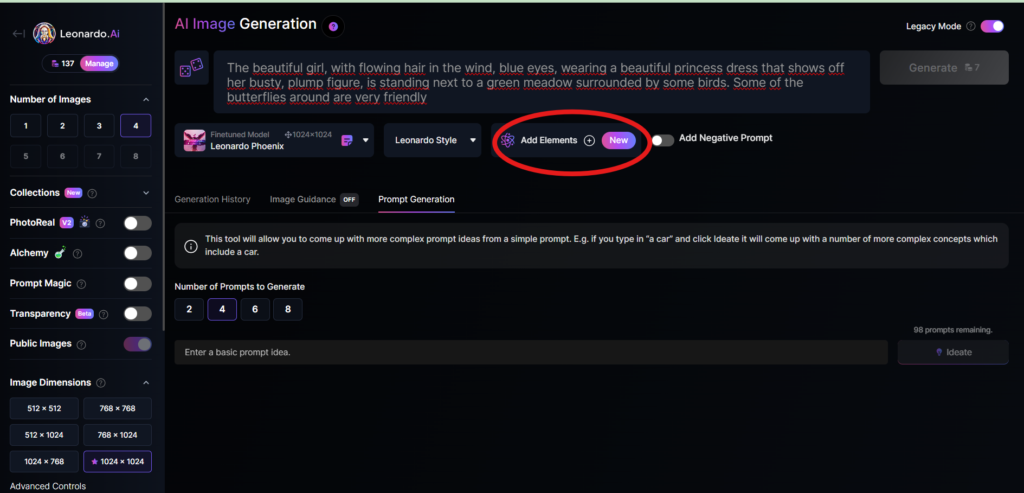
Add Elements
Use the drop-down menu under “Add Elements” to select a specific element such as Coloring Book, Folk Art Illustration, Children’s Illustration, Cartoon & Anime, or Classic Style Christmas Illustration. Although you can select multiple elements, Leonardo advises that choosing more than two elements may lead to unpredictable results.
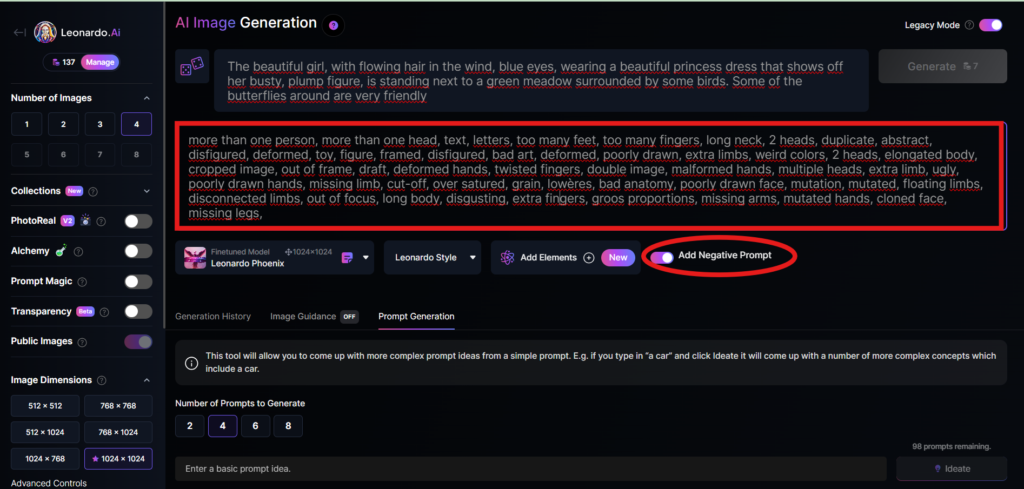
Add a negative prompt
As in the example above, I created negative prompts to ensure the resulting images were error-free, including: “more than one person, more than one head, text, letters, too many feet, too many fingers, long neck, 2 heads, duplicate, abstract, disfigured, deformed, toy, figure, framed, disfigured, bad art, deformed, poorly drawn, extra limbs, weird colors, 2 heads, elongated body, cropped image, out of frame, draft, deformed hands, twisted fingers, double image, malformed hands, multiple heads, extra limb, ugly, poorly drawn hands, missing limb, cut-off, over satured, grain, lowères, bad anatomy, poorly drawn face, mutation, mutated, floating limbs, disconnected limbs, out of focus, long body, disgusting, extra fingers, groos proportions, missing arms, mutated hands, cloned face, missing legs,”
Here are the basic steps for new users to create a simple image with Leonardo AI. In the next article, I will guide you through advanced details to create various types of images for different purposes. You can start your free trial with Leonardo AI here:

Gmx.com Активированы POP3, IMAP, SMTP
Fortnite Gift Card | SE SEK 200 Fortnite gift card
TELEGRAM – Ручная регистрация | Трастовые аккаунты | Страна – Кения | формат TData
Kick off with us and burrow into the entire авиамастерс 2 gallery of casino games to pick through.
BESTSELLER Topface | Аккаунты | Пол: Женский | сайт знакомств Topface.com
BESTSELLER ? OLD TWITTER | 2007-2023 ГОД РЕГИСТРАЦИИ | 100+ REAL FOLLOWERS
Hello! Do you use Twitter? I’d like to follow you if that would be ok.
I’m absolutely enjoying your blog and look forward to new posts.
TELEGRAM – GEO – (+34) Spain (Испания) регистрация 25.05.2026 TDATA I SESSION + JSON
INSTAGRAM – ФОРМАТ IAM – СПОСОБ РЕГИСТРАЦИИ: АВТОРЕГ – НЕ УМИРАЮТ В ОТЛЁЖКЕ – ЗАРЕГИСТРИРОВАНЫ НА ПОЧТУ GMAIL – КУКИ ЧЕКНУТЫ!
Apple Gift Card | DE EUR 10 Apple gift card
6000 Телеграм каналов и чатов WildBerries (2026 год). Продажа пачкой.
ПРОСМОТРЫ / НА ПОСТ
Apple Gift Card | DE EUR 70 Apple gift card
NEW Gmail.com | 2FA | Свежие аккаунты | Смешанные IP и GEO | Смешанный пол | Без подтверждения номера
GitHub account
당신은 당신의 프레젠테이션으로 정말로 쉽게 보이게 했습니다.
하지만 저는 이 주제가 정말 이해하기 어려운 것이라고 생각합니다.
저에게는 너무 복잡하고 느껴집니다.
다음 제출를 기대하며, 그것을 익히려고 노력할 것입니다!
Just desire to say your article is as astounding.
The clarity in your post is just cool and i can assume you are an expert on this subject.
Well with your permission let me to grab your feed to keep updated with forthcoming post.
Thanks a million and please continue the enjoyable work.
This is one of the best blogs I’ve come across in a while!
Your writing style is so engaging, and the content
is top-notch. Do you have any advice for new bloggers on how
to create content as compelling as yours? Appreciate it!
이 웹사이트의 퀄리티에 정말 감동받았어요!
비아그라에 대한 포스트가 너무 잘 정리되어 있어요.
모바일에서 약간 느리게 로드되던데, 캐싱 플러그인을 사용해 보셨나요?
그래도 계속 방문할게요! 감사합니다!
Spotify – прослушивания через радиоисточник Швейцария (Пожизненная гарантия) – цена за 1000 прослушиваний
NEW @gmail.com Автореги. Зарегистрированы 72+ часа назад. Подтверждены по SMS и не просят их при входе
Рекламный кабинет TikTok ADS / Ручная регистрация / Ручной платёж / VAT заполнен / Готов к запуску / Польша
NEW База ТГ аккаунтов с группы: @Binance_Academy_ID cобраных с сообщений за последние 30 дней 31.07.2026 (После фильтров: 617)