
The basic version of Leonardo AI is available for free, although it comes with a daily limit of 150 tokens. For those who need more capabilities and fewer restrictions, premium plans start at $10 per month. However, the free version is sufficient for most beginners. It is recommended to try the free version before opting for the paid one. Here is your guide to creating images with Leonardo AI.
Here are 5 steps to get started with Leonardo AI:
Start:
Go to the Leonardo AI App:
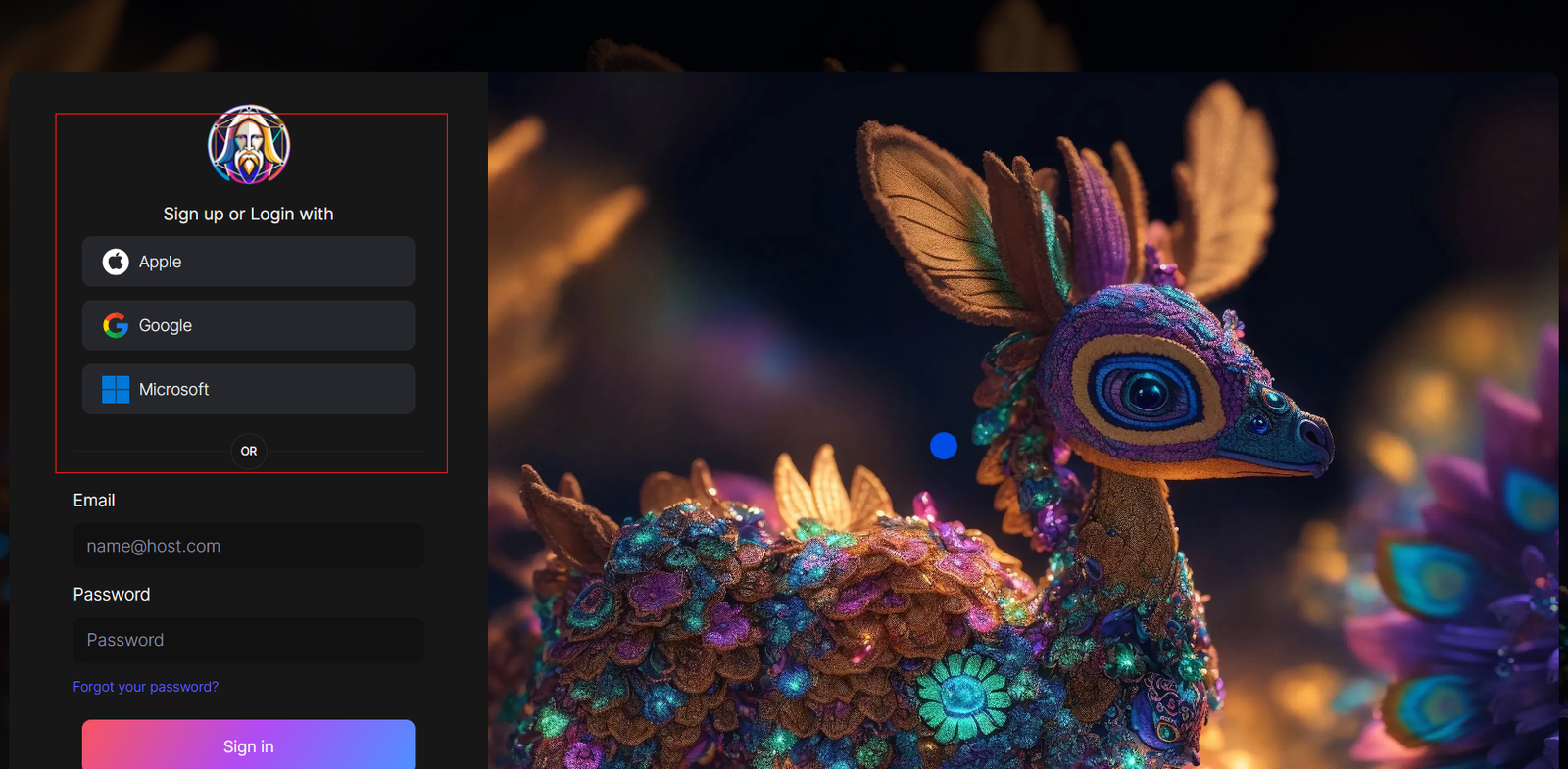
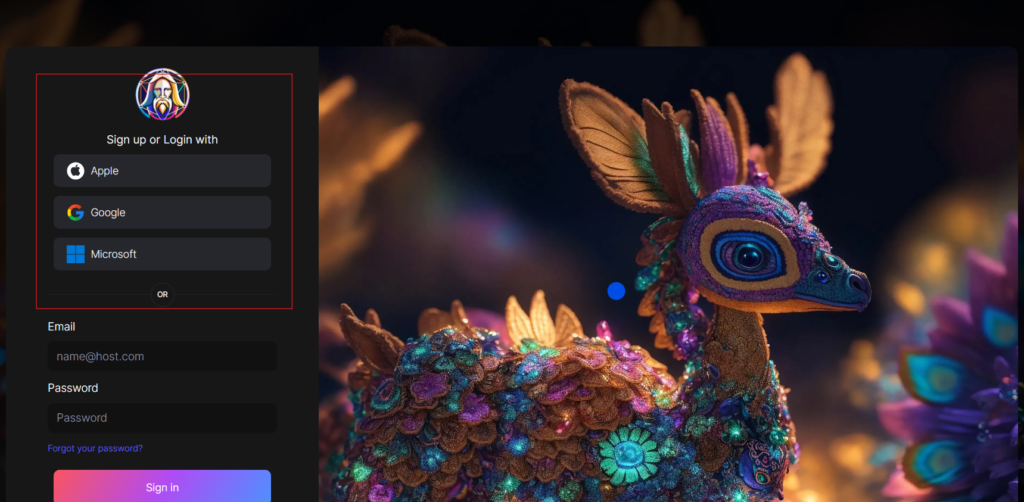
You can sign in with your Apple, Google, Microsoft account, or email account. Then, sign in with your newly created account.
Navigate to the image creation tool
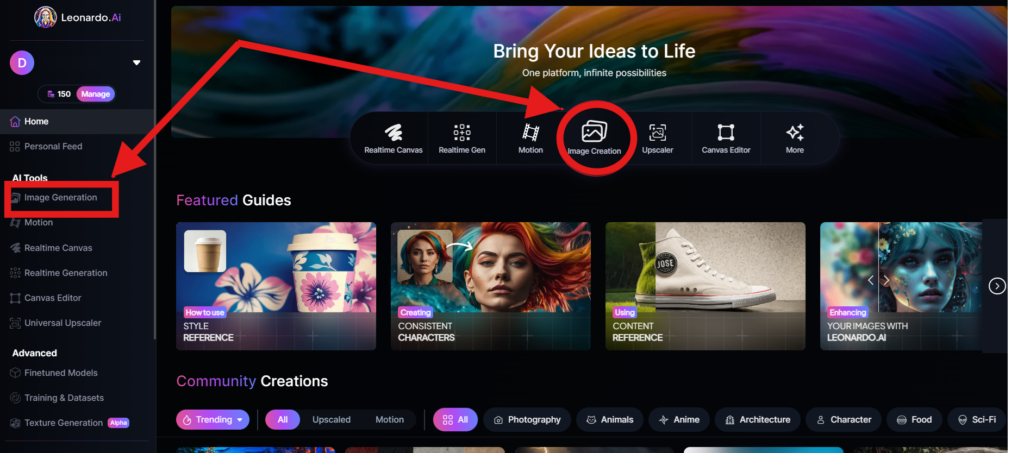
On the app.leonardo.ai homepage, select the ‘Image Generation’ option from the left panel, click on the icon in the middle or use the ‘Image Creation’ button located in the middle
Create your first image
In the prompt field at the top you can immediately create your desired Image. Or you can also create a reminder with the available AI suggestions in 2 ways:
+ Generate a random photo: 1, Click to “New Random Prompt” then 2. click Generate
+ Create a photo with an AI description by an image that you want to get the original idea. Then you edit according to your creativity
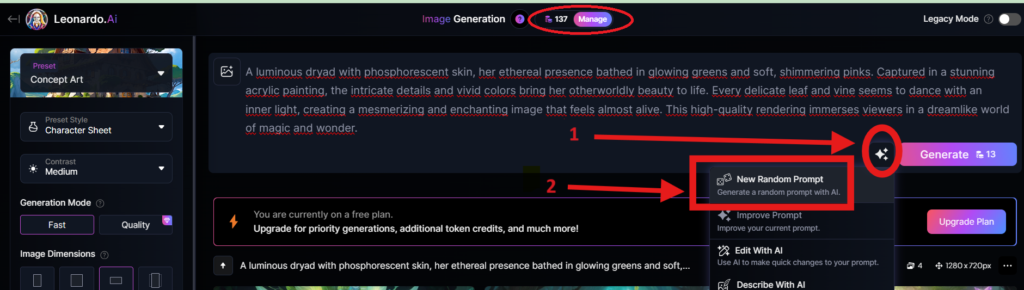
Wait about 20 seconds for Leonardo AI to generate the images, and you will receive four stunning high-resolution images as follows:
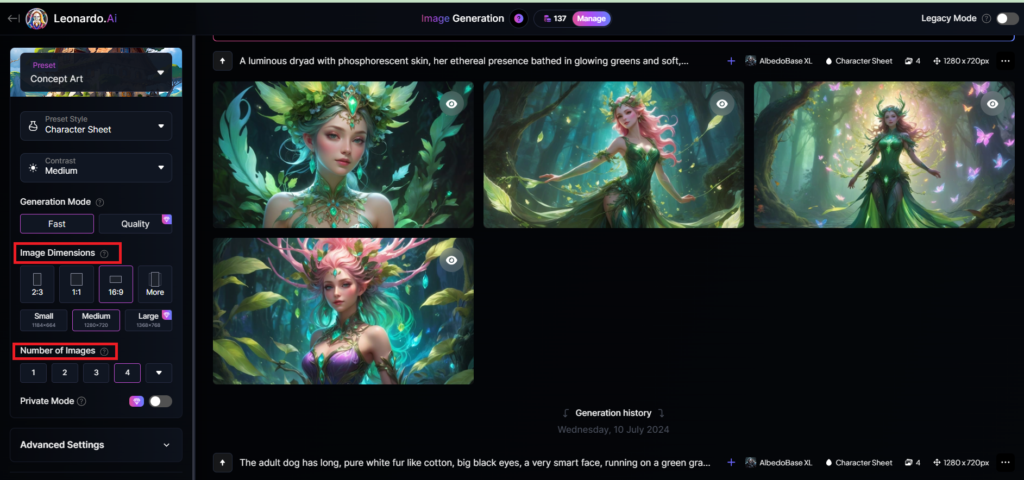
You can select the image size in the “Image Dimensions” section, which includes sizes like 2:3, 1:1, 16:9, and more options under “More” on the left. Alternatively, you can choose the number of images in the “Number of Images” section, with a maximum of 8 images that can be generated.
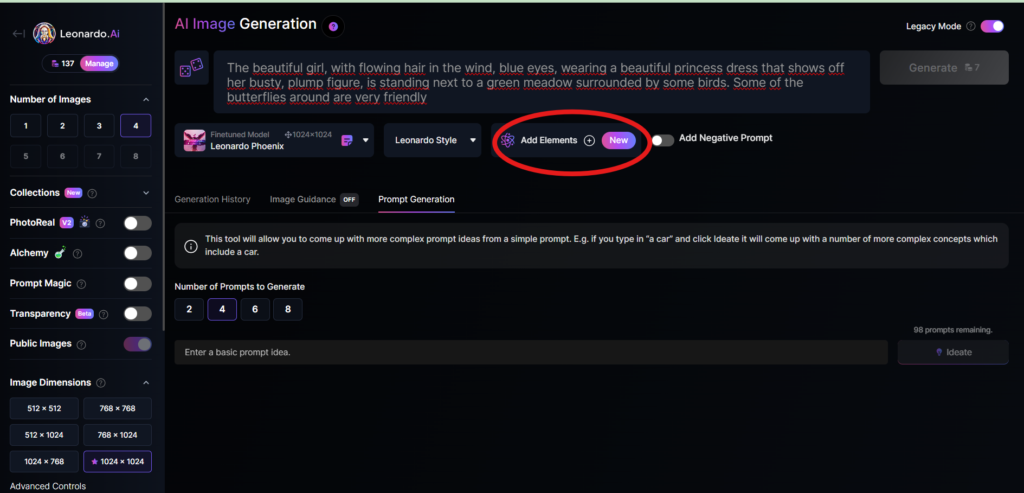
Add Elements
Use the drop-down menu under “Add Elements” to select a specific element such as Coloring Book, Folk Art Illustration, Children’s Illustration, Cartoon & Anime, or Classic Style Christmas Illustration. Although you can select multiple elements, Leonardo advises that choosing more than two elements may lead to unpredictable results.
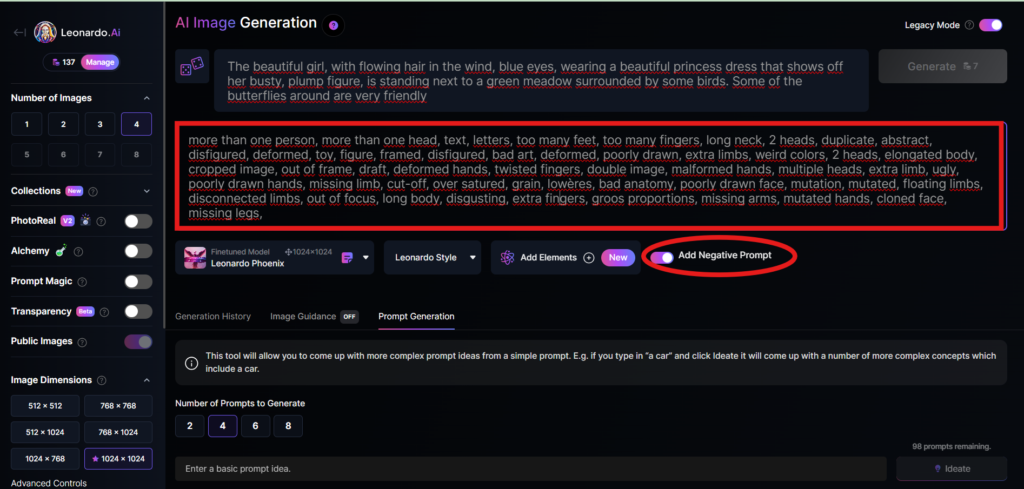
Add a negative prompt
As in the example above, I created negative prompts to ensure the resulting images were error-free, including: “more than one person, more than one head, text, letters, too many feet, too many fingers, long neck, 2 heads, duplicate, abstract, disfigured, deformed, toy, figure, framed, disfigured, bad art, deformed, poorly drawn, extra limbs, weird colors, 2 heads, elongated body, cropped image, out of frame, draft, deformed hands, twisted fingers, double image, malformed hands, multiple heads, extra limb, ugly, poorly drawn hands, missing limb, cut-off, over satured, grain, lowères, bad anatomy, poorly drawn face, mutation, mutated, floating limbs, disconnected limbs, out of focus, long body, disgusting, extra fingers, groos proportions, missing arms, mutated hands, cloned face, missing legs,”
Here are the basic steps for new users to create a simple image with Leonardo AI. In the next article, I will guide you through advanced details to create various types of images for different purposes. You can start your free trial with Leonardo AI here:

Fresh TikTok accounts with mail verified
Приватные мобильные прокси Telekom, Черногория
Telegram – Казахстан | саморег | рега от 21.01.26 | | Чистые| | гарантия качества| Установлена 2FA для безопасности (указано в описании) | формата TData |
купить бошки гашиш марихуану лсд экстази вейп с тгк купить купить Мефедрон, Гашиш, Бошки, Альфа-ПВП магазины купить меф купить амф купить трамадол 50
купить бошки марихуаны гашиш можно купить лирика 56 купитьhttps://pervomaiskkupit.xyz купить наркотики бот наркошоп купить
Roblox Gift Card | US $15 Roblox gift card
UA ПРОФИЛЬ | GEO: Украина | | Старый (2021-2022) | создана СТРАНИЦА | >Marketplace | друзья | 2FA | Email | настройки доступа | ручная подготовка 40+ дней | №14
Верифицированный OLD БМ IT, подтвержден по документам. Лимит 50$
That is a great tip particularly to those new to the
blogosphere. Short but very precise information…
Thank you for sharing this one. A must read article!
TELEGRAM | База чатов 207 штук | Тематика: Измир |Гео: Турция
Steam Wallet Code | KR KRW 25000
Авторег Аккаунт Steam| Регион: Казахстан | Подтвержден по почте + с Доступом к почте
? TikTok Business Верифицирован | Документы загружены | Ссылка без 3000 подписчиков | Норвегия NO
OLD INSTAGRAM 2-FA | 120+ подписчиков. Ссылка на саму страницу: instagram.com/chelm33i
Tinder Gift Card | VN Tinder 1 Week Plus
Аккаунты FB | Зарегистрированы с Scotland ip. Год регистрации – 2007-2014. Активировано 2 Business Manager-а (отлежка БМ 4 года ). Ежедневный лимит рекламной кампании 250$. Активирован маркетплейс, подходит для рекламы. Подтверждены по почте, почты в комплекте нет. Пол (MIX). Двухфакторная авторизация включена.
Аккаунты реальных людей | ГЕО UG | 10-99 подписчиков | Год регистрации 2016-2024
강한 압 없이 부드러운 스웨디시 & 로미로미 스타일의 프리미엄 바디테라피.
마곡을 비롯해 강남·홍대·신촌·일산·잠실에서도 찾아오시는 힐링 스팟.
GOG-account-GAME-RimWorld
Аккаунты ADS Тик Ток (Бельгия) – для рекламы с пройденной ВЕРИФИКАЦИЕЙ! Почта идет с доступом | POSTPAY USD
Hi mates, how is everything, and what you would like to say about this piece of writing, in my view its really awesome designed for me.