

The basic version of Leonardo AI is available for free, although it comes with a daily limit of 150 tokens. For those who need more capabilities and fewer restrictions, premium plans start at $10 per month. However, the free version is sufficient for most beginners. It is recommended to try the free version before opting for the paid one. Here is your guide to creating images with Leonardo AI.
Here are 5 steps to get started with Leonardo AI:
Start:
Go to the Leonardo AI App:
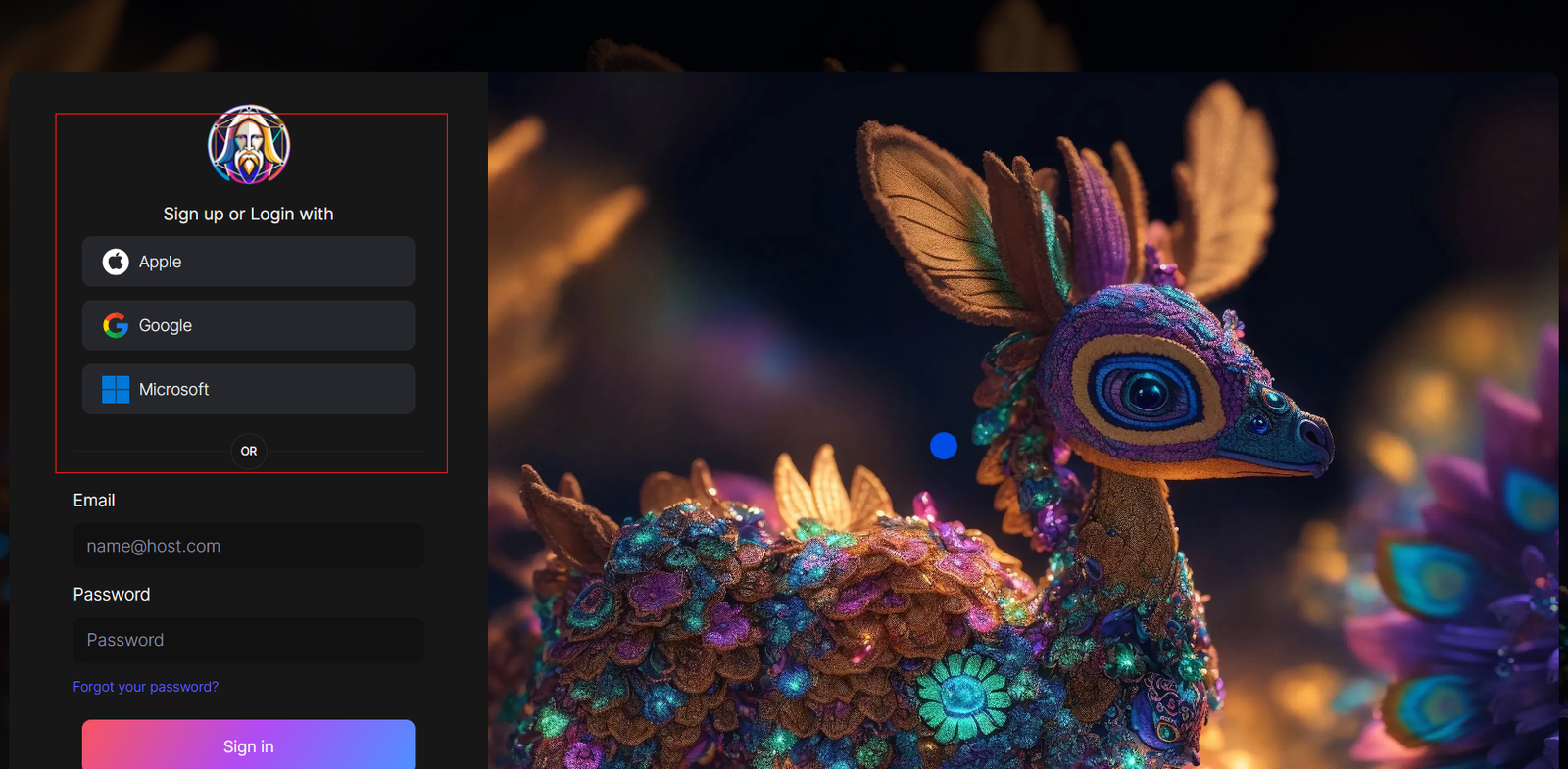
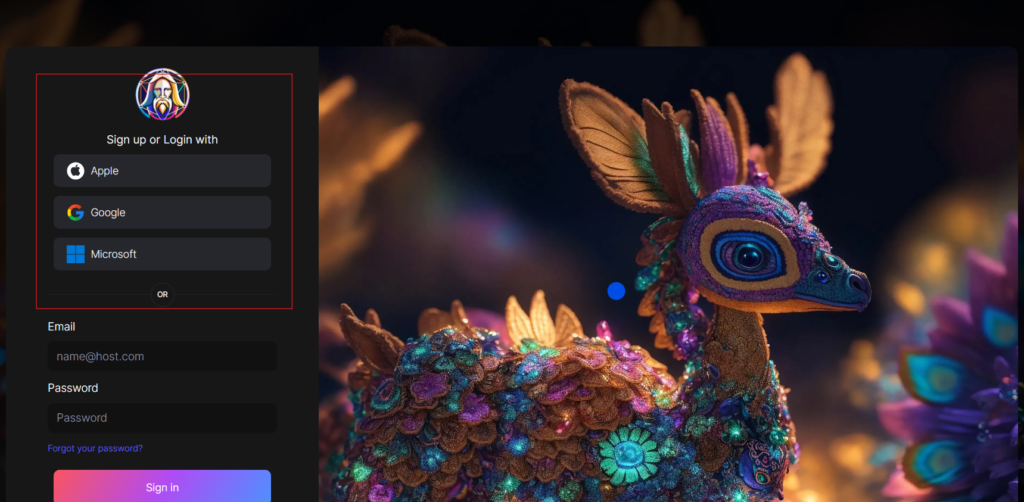
You can sign in with your Apple, Google, Microsoft account, or email account. Then, sign in with your newly created account.
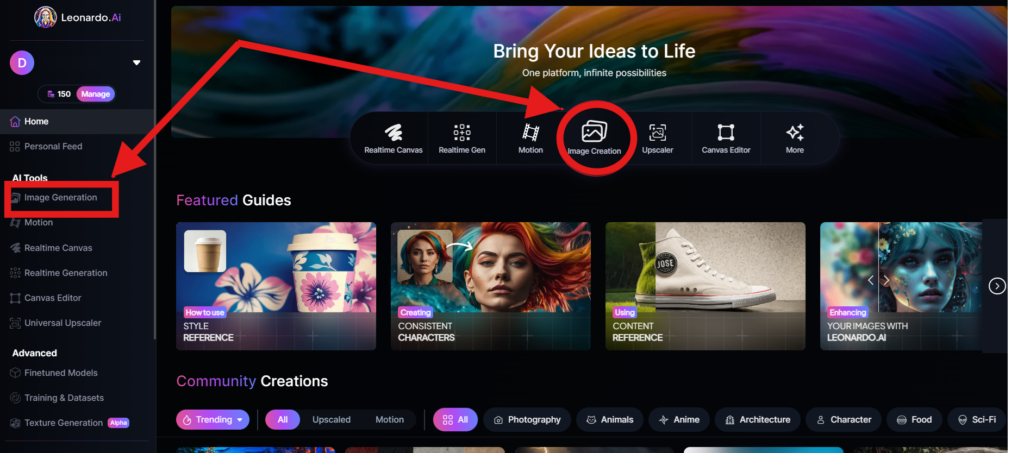
Navigate to the image creation tool
On the app.leonardo.ai homepage, select the ‘Image Generation’ option from the left panel, click on the icon in the middle or use the ‘Image Creation’ button located in the middle
Create your first image
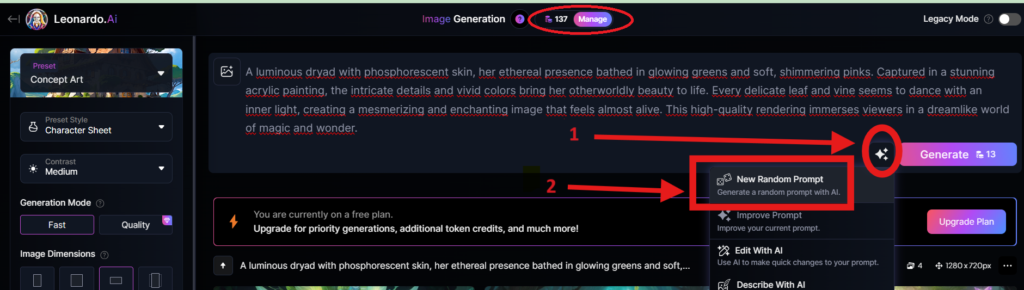
In the prompt field at the top you can immediately create your desired Image. Or you can also create a reminder with the available AI suggestions in 2 ways:
+ Generate a random photo: 1, Click to “New Random Prompt” then 2. click Generate
+ Create a photo with an AI description by an image that you want to get the original idea. Then you edit according to your creativity
Wait about 20 seconds for Leonardo AI to generate the images, and you will receive four stunning high-resolution images as follows:
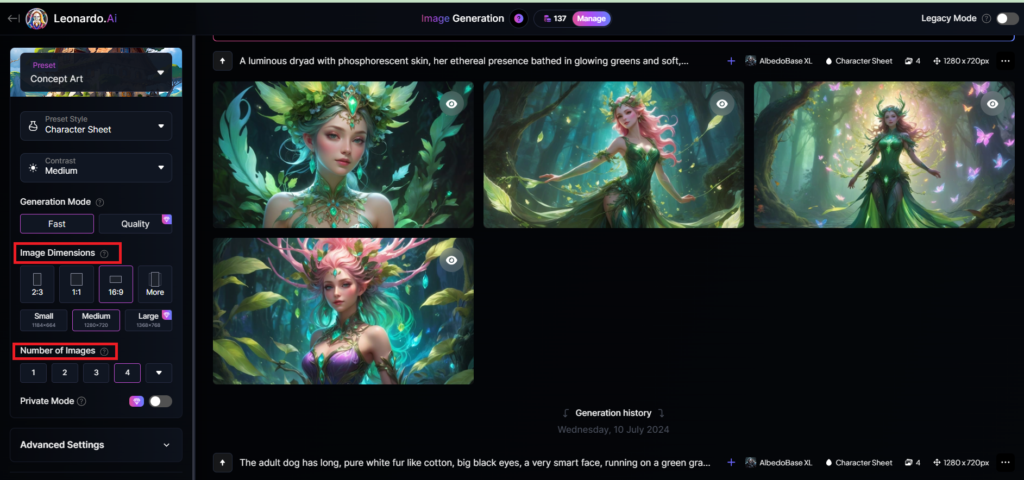
You can select the image size in the “Image Dimensions” section, which includes sizes like 2:3, 1:1, 16:9, and more options under “More” on the left. Alternatively, you can choose the number of images in the “Number of Images” section, with a maximum of 8 images that can be generated.
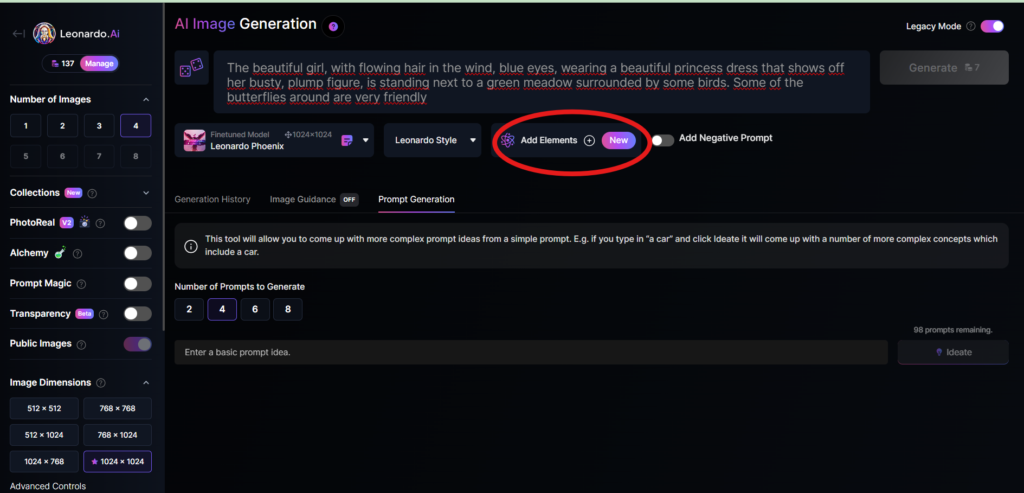
Add Elements
Use the drop-down menu under “Add Elements” to select a specific element such as Coloring Book, Folk Art Illustration, Children’s Illustration, Cartoon & Anime, or Classic Style Christmas Illustration. Although you can select multiple elements, Leonardo advises that choosing more than two elements may lead to unpredictable results.
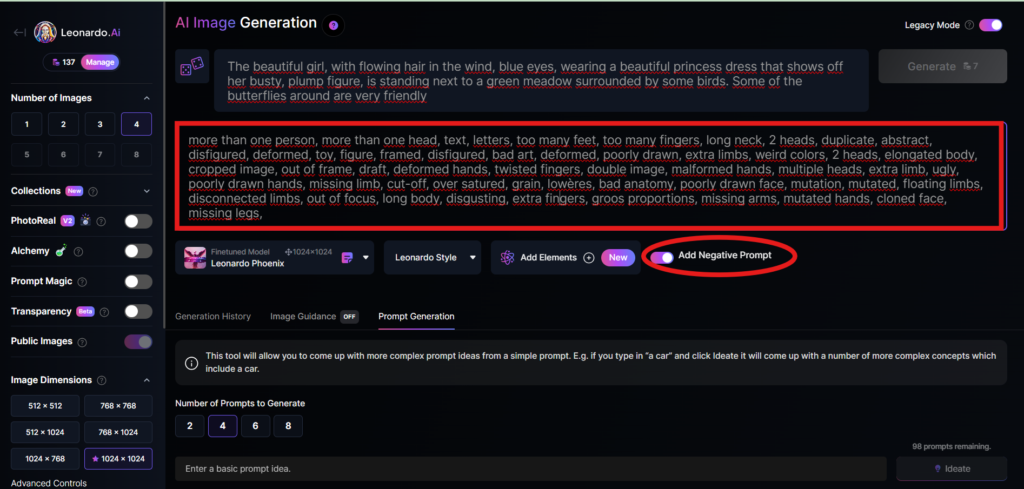
Add a negative prompt
As in the example above, I created negative prompts to ensure the resulting images were error-free, including: “more than one person, more than one head, text, letters, too many feet, too many fingers, long neck, 2 heads, duplicate, abstract, disfigured, deformed, toy, figure, framed, disfigured, bad art, deformed, poorly drawn, extra limbs, weird colors, 2 heads, elongated body, cropped image, out of frame, draft, deformed hands, twisted fingers, double image, malformed hands, multiple heads, extra limb, ugly, poorly drawn hands, missing limb, cut-off, over satured, grain, lowères, bad anatomy, poorly drawn face, mutation, mutated, floating limbs, disconnected limbs, out of focus, long body, disgusting, extra fingers, groos proportions, missing arms, mutated hands, cloned face, missing legs,”
Here are the basic steps for new users to create a simple image with Leonardo AI. In the next article, I will guide you through advanced details to create various types of images for different purposes. You can start your free trial with Leonardo AI here:


roulette bis 200 online casino 25 euro cashlib einsatz
This is highly informative. Check out consultas legales Coruña for more.
This is a great reminder that moving is easier with the right preparation and support. Cape Coral residents can check Local movers Cape Coral for moving assistance.
Appreciate the helpful advice. For more, visit residential cleaning Houston .
Very helpful read. For similar content, visit Chingford uPVC window installers .
Choosing the right moving company in San Pedro can save time, protect belongings, and make moving day much more organized. Helpful link: San Pedro moving companies
A successful move requires more than just a truck. Good Cape Coral moving companies bring the right equipment, trained movers, and a plan for safely transporting belongings. Long distance movers Cape Coral
Грибы где искать кокаин купить Кинешма купить закладку Метамфетамин Ханты-Мансийск купить Мефедрон (миф)
Лыткарино купить Мефедрон в мелких камнях/муке Бонги, трубки, вапорайзеры, аксессуары для курения в Новосибирске
Great job! Discover more at upvc windows .
A smooth move starts with preparation, packing supplies, and choosing movers who know the Palm Coast area well. Here is a useful link: Office moving companies Palm Coast
Hi folks! I just wanted to share my short personal story!
I am Emily, a home-based housewife who a few months ago learned how to
navigate Paybis. Back when I was complete beginner, I was terrified of complex
trading terminals. But Paybis was super easy to use because their instant fiat-to-crypto checkout is foolproof.
Here is my actual financial breakdown: I started
out with just $250 from my personal savings.
By using SEPA bank transfers and card transactions on Paybis,
I bought crypto assets during local price dips and off-ramped straight
to my credit card whenever prices swung up. In less than half a year, I
managed to generate a clean $14,200 in arbitrage and
swing profits! What I love most is that Paybis
processed all my fiat withdrawals without delays.
The real reason I am so grateful: I am due to give birth in just
a few weeks! Because of the money I made on Paybis,
my husband and I are completely financially stress-free!
We are using these earnings to:
1. A top-tier private maternity ward room (around
$4,500).
2. fully furnishing our baby’s room ($2,500).
3. top-of-the-line baby gear and travel gear (about $1,600).
4. a hefty emergency fund for baby supplies (totaling $3,000).
5. an initial deposit into a high-yield savings fund for our baby!
If I could turn things around from my living room sofa,
do not hesitate to give Paybis a try! Wishing you all immense success!
Hi, Neat post. There is an issue along with your website in web explorer, would test this?
IE nonetheless is the marketplace leader and a good
component of other folks will miss your great writing
due to this problem.
Thanks for the great explanation. More info at Plumber near me .
This was quite helpful. For more, visit uPVC patio doors .
Planning ahead is essential when moving long distance from San Pedro. Professional movers can help with packing, loading, and delivery. Visit Cheap movers San Pedro .
I always recommend getting organized early before any long distance move. Asheville moving companies has helpful tips for people searching for movers in Asheville.
Moving out of Atascocita to a new state can be exciting but stressful. Articles like this, along with resources like Atascocita apartment movers , can help people feel more prepared.
casino echtgeld baden-württemberg
Also visit my blog post: roulette gewinn multiplikator (https://tangomagdalena.de/)
Hi there, I enjoy reading all of your article post.
I like to write a little comment to support you.
A smooth move starts with preparation, packing supplies, and choosing movers who know the Palm Coast area well. Here is a useful link: Office moving companies Palm Coast