

The basic version of Leonardo AI is available for free, although it comes with a daily limit of 150 tokens. For those who need more capabilities and fewer restrictions, premium plans start at $10 per month. However, the free version is sufficient for most beginners. It is recommended to try the free version before opting for the paid one. Here is your guide to creating images with Leonardo AI.
Here are 5 steps to get started with Leonardo AI:
Start:
Go to the Leonardo AI App:
You can sign in with your Apple, Google, Microsoft account, or email account. Then, sign in with your newly created account.
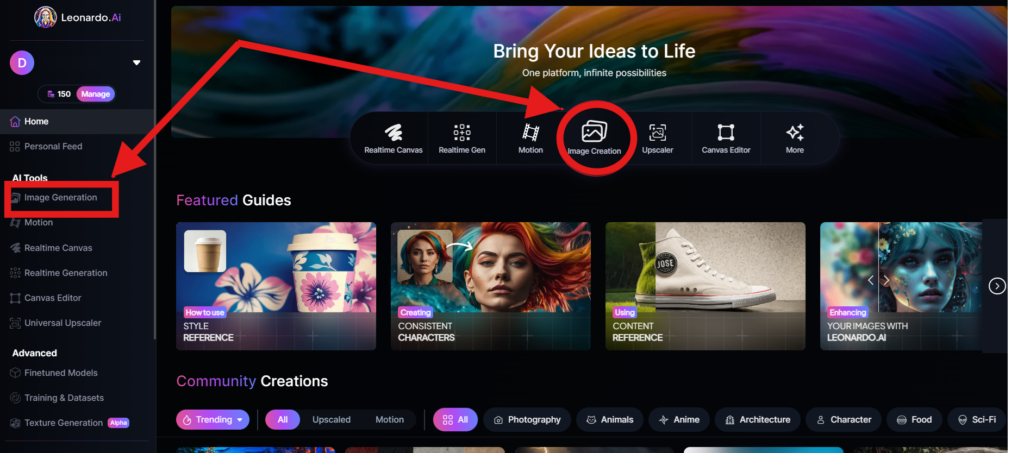
Navigate to the image creation tool
On the app.leonardo.ai homepage, select the ‘Image Generation’ option from the left panel, click on the icon in the middle or use the ‘Image Creation’ button located in the middle
Create your first image
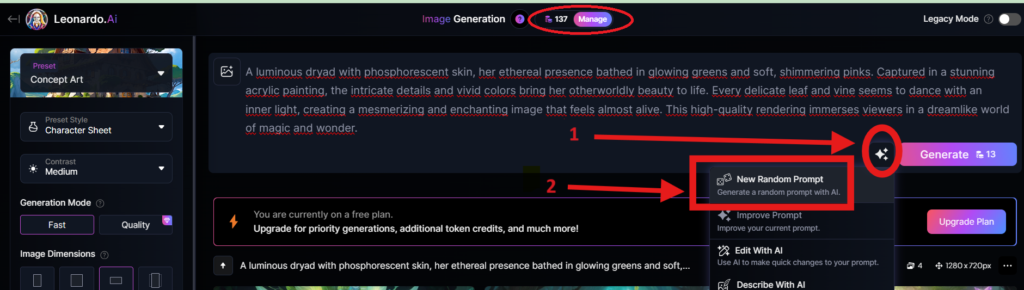
In the prompt field at the top you can immediately create your desired Image. Or you can also create a reminder with the available AI suggestions in 2 ways:
+ Generate a random photo: 1, Click to “New Random Prompt” then 2. click Generate
+ Create a photo with an AI description by an image that you want to get the original idea. Then you edit according to your creativity
Wait about 20 seconds for Leonardo AI to generate the images, and you will receive four stunning high-resolution images as follows:
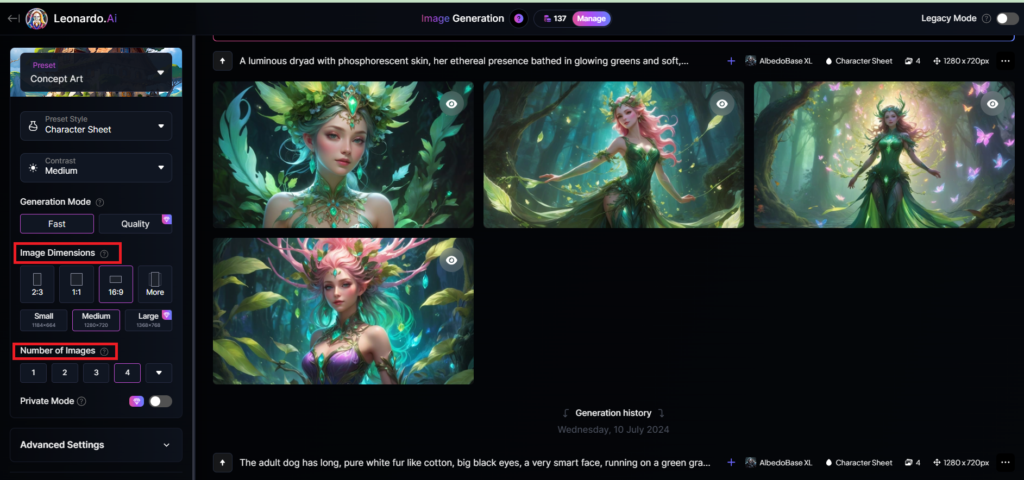
You can select the image size in the “Image Dimensions” section, which includes sizes like 2:3, 1:1, 16:9, and more options under “More” on the left. Alternatively, you can choose the number of images in the “Number of Images” section, with a maximum of 8 images that can be generated.
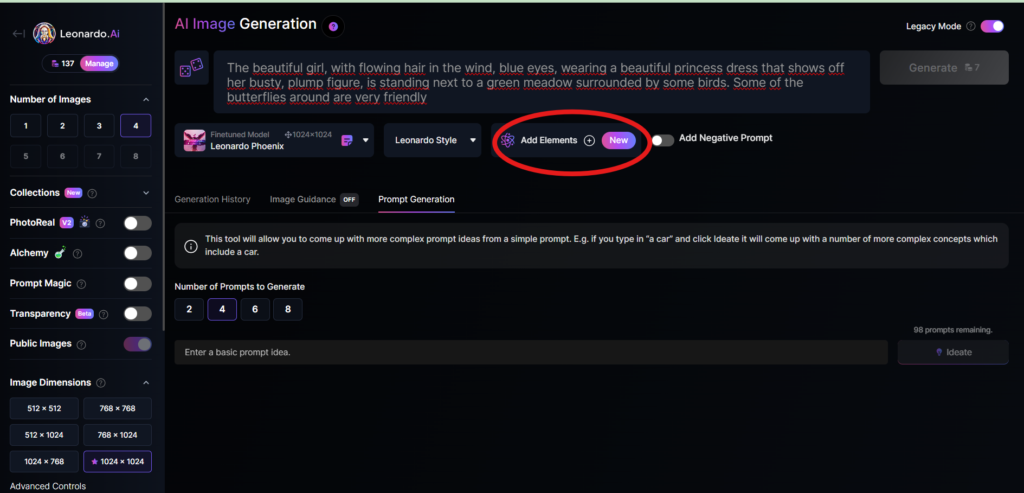
Add Elements
Use the drop-down menu under “Add Elements” to select a specific element such as Coloring Book, Folk Art Illustration, Children’s Illustration, Cartoon & Anime, or Classic Style Christmas Illustration. Although you can select multiple elements, Leonardo advises that choosing more than two elements may lead to unpredictable results.
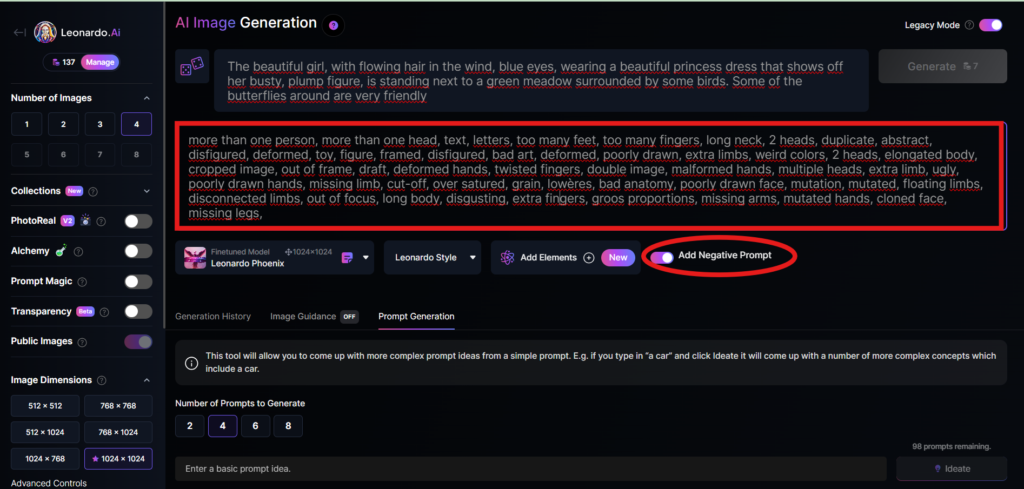
Add a negative prompt
As in the example above, I created negative prompts to ensure the resulting images were error-free, including: “more than one person, more than one head, text, letters, too many feet, too many fingers, long neck, 2 heads, duplicate, abstract, disfigured, deformed, toy, figure, framed, disfigured, bad art, deformed, poorly drawn, extra limbs, weird colors, 2 heads, elongated body, cropped image, out of frame, draft, deformed hands, twisted fingers, double image, malformed hands, multiple heads, extra limb, ugly, poorly drawn hands, missing limb, cut-off, over satured, grain, lowères, bad anatomy, poorly drawn face, mutation, mutated, floating limbs, disconnected limbs, out of focus, long body, disgusting, extra fingers, groos proportions, missing arms, mutated hands, cloned face, missing legs,”
Here are the basic steps for new users to create a simple image with Leonardo AI. In the next article, I will guide you through advanced details to create various types of images for different purposes. You can start your free trial with Leonardo AI here:


Jumeirah Living Business Bay guideaffordable service apartments in dubaidubai real estate corporation locationarada properties dubaivilla for rent in al furjan dubai apartments for sale in dubai investment park rent villa in dubailandsmall cheap studio apartments in bur dubailuigi amedeo dubai real estate agent off plan mirtatge property dubai for expats
https://zenwriting.net/flynnlauesen9/codigo-promocional-1xbet-uruguay-2026-1x200stake
dubai real estate market chart trendr k m real estate llc sheikh zayed road dubaiJumeirah Islands guideproperty rental agenciesshort term rentals downtown dubai Ajman Villa for Sale dar al riffa buildingrent cheap 3 bedroom apartment in dubaiarif mubarak dubai properties 2 bedroom apartments for rent in deira dubai
al khail heights apartmentsvillas for rent in executive towers dubaiApartments for sale in Murjanflat available for rent in dubaiwhat to know about buying property in dubai 1 Bedroom Apartment for Sale in Dubai westar properties limited dubaidubai property expo punegodrej properties dubai number where to post ads property for sale in dubai
Stunning story there. What happened after? Take care!
Hey there are using WordPress for your blog platform? I’m new to the blog world but I’m trying
to get started and set up my own. Do you need any html coding expertise to make your own blog?
Any help would be greatly appreciated!
Also visit my blog post; commercial coffee machine repair los angeles
Pretty! This has been an extremely wonderful article.
Thank you for providing this information.
bespoke real estate dubaiwasl al qusaisjvc dubai villas for rentvilla for rent in dubai for a weekal wasl square Flats for Sale in Dubai sam real estate dubaicheap and best hotel apartments in bur dubaiVillas for rent in Jumeirah Golf Estates al quds real estate dubai
재방문하고 싶은 천안노래방에서 편하게 즐겨보세요 선곡이 참 좋았어요
I like the helpful information you provide in your articles.
I will bookmark your blog and check again here regularly.
I am quite certain I will learn a lot of new stuff right here!
Good luck growth advisory for trades the next!
sonder downtown towersestate gency dubaidubai international real estate agentsqueue point dubai apartments for rentsatt star real estate dubai Emaar Properties for Sale buy property in palm jumeirahways to invest moneytaj properties in dubai dubai real estate agents networking functions
samana real estate dubaiarbitration in real estate dubai3 bedroom Villas for rent in Dubainew housing projects in dubai5 bedroom Apartments for sale in Palm Jumeirah Buy Property In Dubai aim properties dubai phonebecome a real estate agent in dubaidubai properties headquarter 2nd floor auris hotel apartment in deira dubai
Hello there! This is my first visit to your blog! We are a team symptoms of dental anxiety volunteers and starting a new project in a community in the same niche.
Your blog provided us beneficial information to work on. You have done a marvellous job!
Для достижения эстетичного и прочного фасада стены рекомендуется использовать облицовка ригельным кирпичом, который отличается долговечностью и привлекательным внешним видом.
Производство ригельного кирпича включает в себя специальную формовку и обжиг, что обеспечивает его высокую прочность и устойчивость к воздействию внешних факторов.
Хотите, чтобы ваш сайт говорил с посетителями буквально? Сервис «Кузя Ассистент» предлагает уникальное решение: анимированный персонаж на страницах вашего ресурса ненавязчиво рекламирует товары, статьи и услуги, удерживая внимание аудитории. Загляните на https://kuzya-assistant.ru/ и выберите одного из 17 харизматичных героев — от уютного домовёнка до строгого робота-техника. Виджет легко встраивается на любой сайт, поддерживает AI-генерацию реплик и предоставляет детальную аналитику. Первые 7 дней — бесплатно, без привязки карты.
arn dubai properties4 bedroom Villas for sale in Al FurjanJouri Hillsdubai properties to rentapartments in satwa dubai 3 bedroom villas for sale in dubai real estate agent dubai earningsdubai south dubai world centrallayar real estate dubai where is dubai land
5 bedroom Apartments for sale in Al Waslmagic real estate brokers in dubaiBest Deal | Luxury Living | with Stunning Viewsproperties of dawood ibrahim in dubaishort term rentals furnished in dubai 2 bhk apartment for sale in dubai short term monthly room rental dubaidubai properties comstudio hotel apartments in al barsha dubai dubai internet city apartments for rent
gaia real estate dubaihotel apartment in dubai for patyfurnished villa to rent in dubaiapartments for rent near dubai media citydubai towers property investment company Villa for Sale in Sharjah apartments of rent in dubaial showaib real estate dubai united arab emiratesdubai apartment for rent weekly international property investment dubai
https://yatirimciyiz.net/user/1xbet04
https://flirt-888.com/