
The basic version of Leonardo AI is available for free, although it comes with a daily limit of 150 tokens. For those who need more capabilities and fewer restrictions, premium plans start at $10 per month. However, the free version is sufficient for most beginners. It is recommended to try the free version before opting for the paid one. Here is your guide to creating images with Leonardo AI.
Here are 5 steps to get started with Leonardo AI:
Start:
Go to the Leonardo AI App:
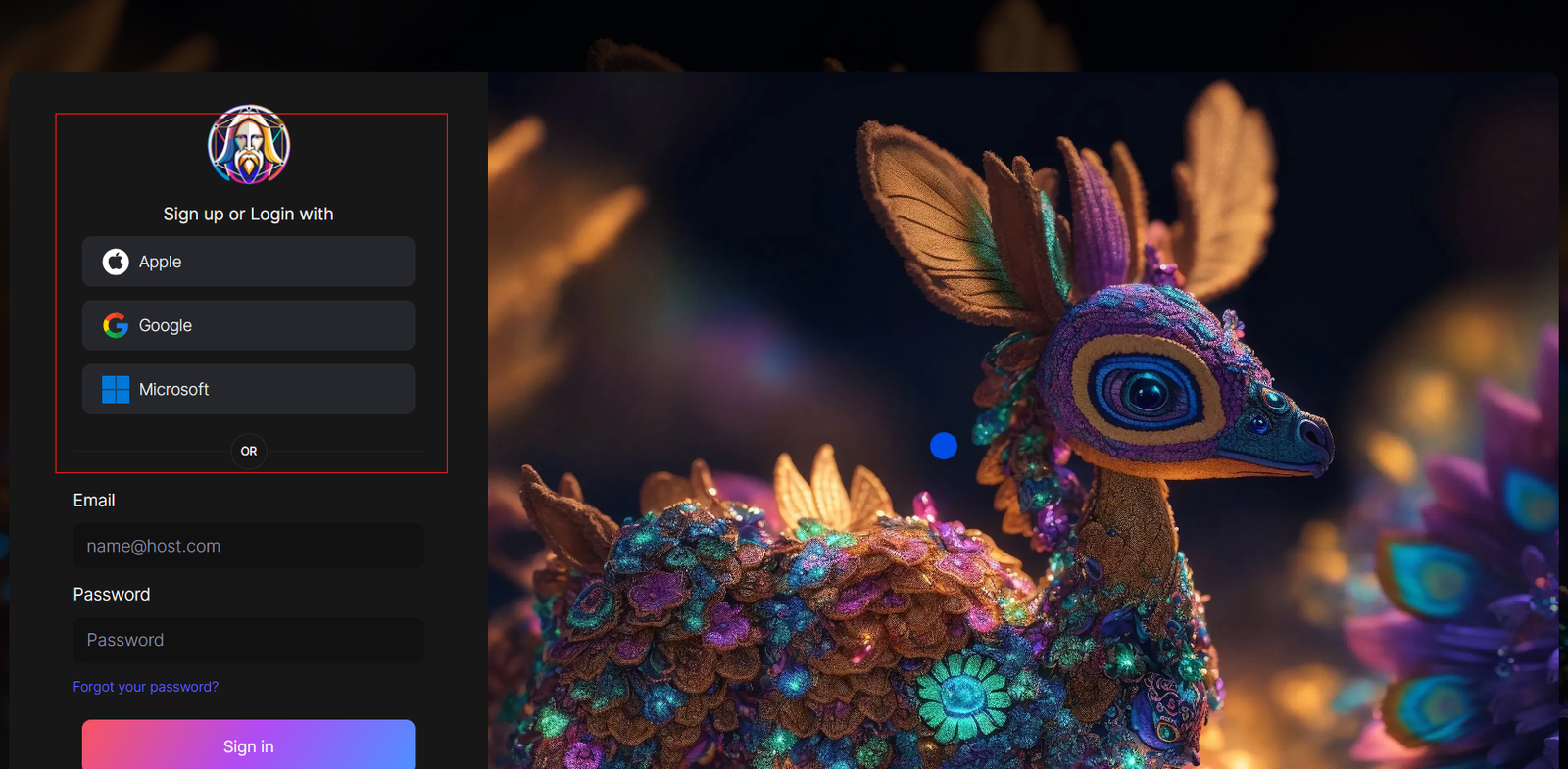
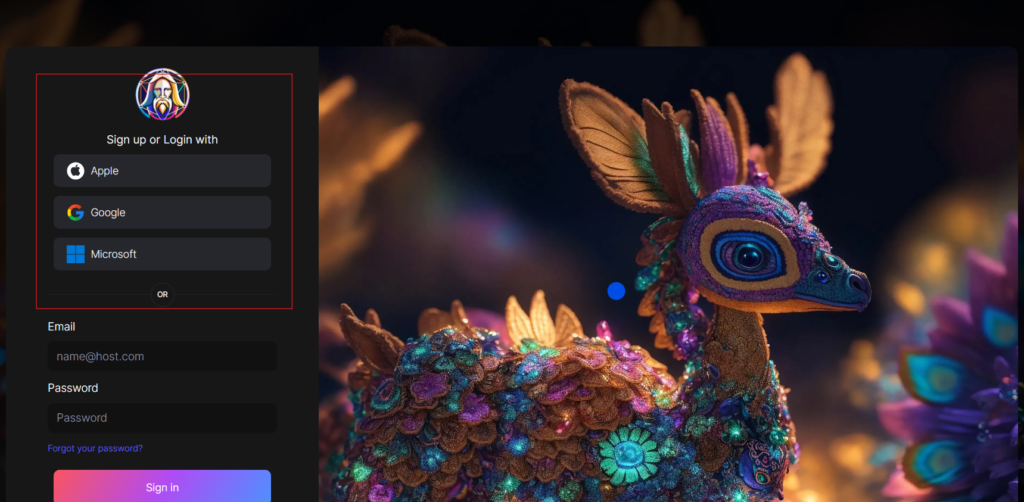
You can sign in with your Apple, Google, Microsoft account, or email account. Then, sign in with your newly created account.
Navigate to the image creation tool
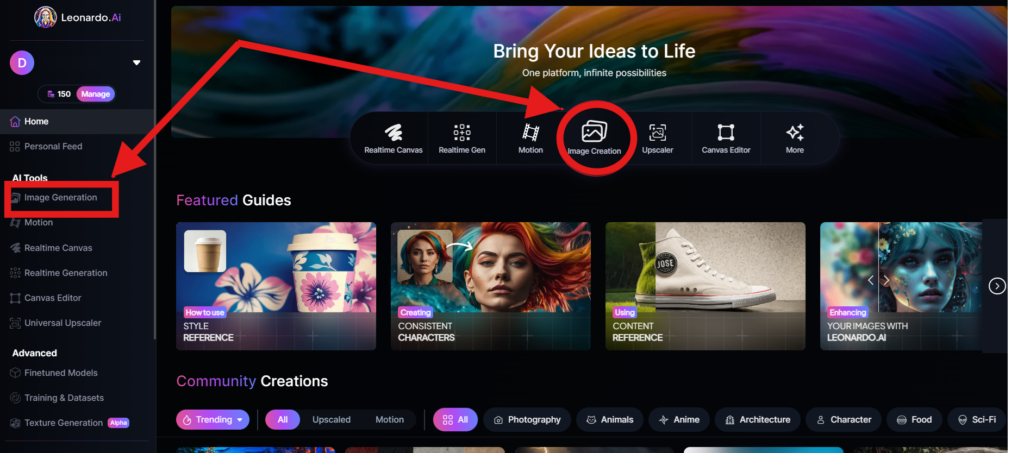
On the app.leonardo.ai homepage, select the ‘Image Generation’ option from the left panel, click on the icon in the middle or use the ‘Image Creation’ button located in the middle
Create your first image
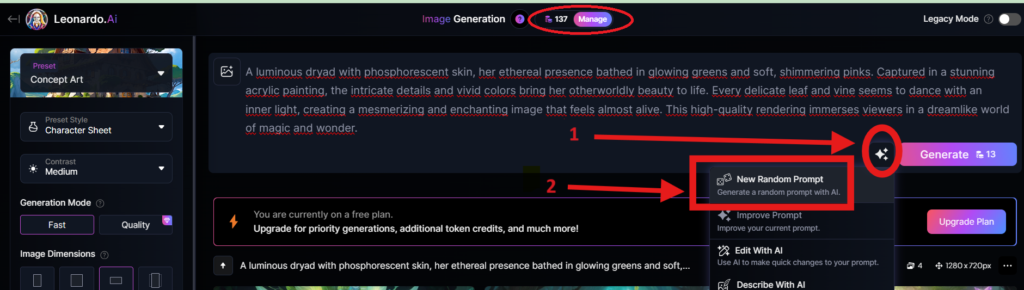
In the prompt field at the top you can immediately create your desired Image. Or you can also create a reminder with the available AI suggestions in 2 ways:
+ Generate a random photo: 1, Click to “New Random Prompt” then 2. click Generate
+ Create a photo with an AI description by an image that you want to get the original idea. Then you edit according to your creativity
Wait about 20 seconds for Leonardo AI to generate the images, and you will receive four stunning high-resolution images as follows:
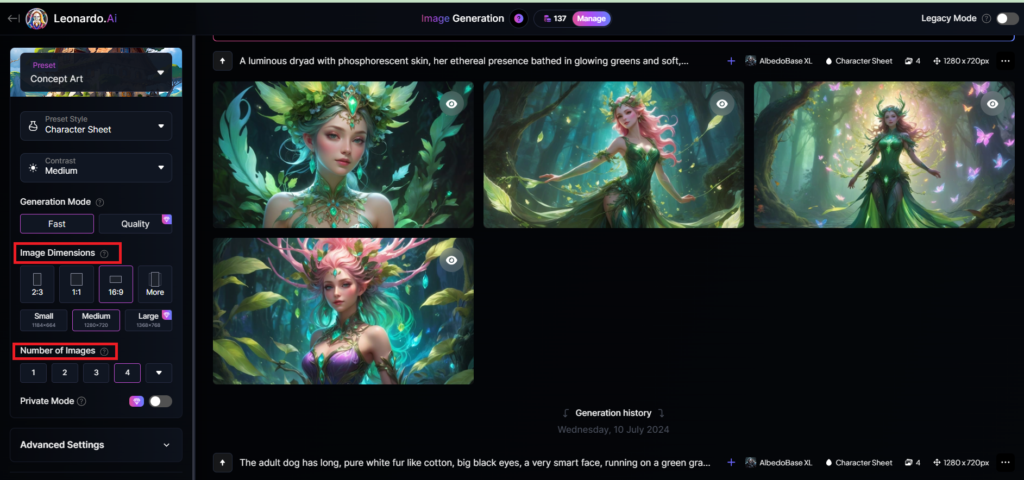
You can select the image size in the “Image Dimensions” section, which includes sizes like 2:3, 1:1, 16:9, and more options under “More” on the left. Alternatively, you can choose the number of images in the “Number of Images” section, with a maximum of 8 images that can be generated.
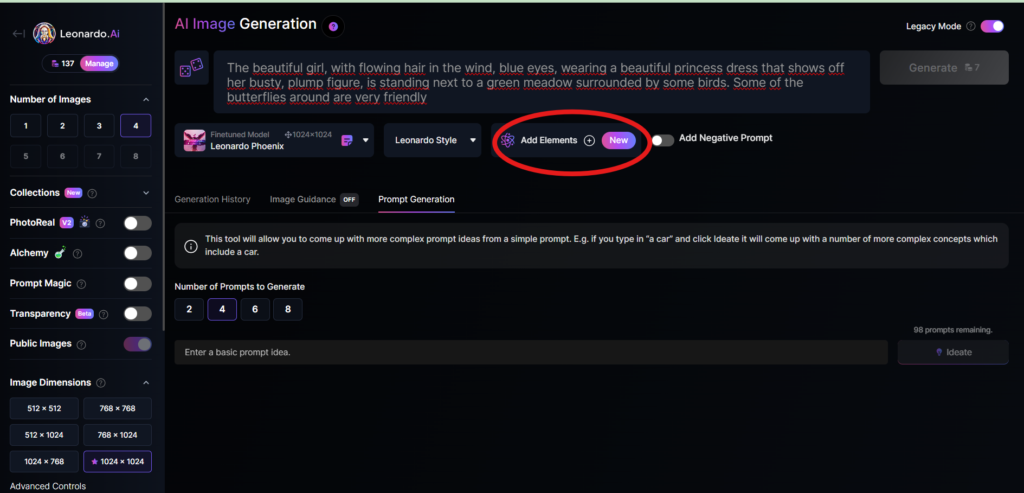
Add Elements
Use the drop-down menu under “Add Elements” to select a specific element such as Coloring Book, Folk Art Illustration, Children’s Illustration, Cartoon & Anime, or Classic Style Christmas Illustration. Although you can select multiple elements, Leonardo advises that choosing more than two elements may lead to unpredictable results.
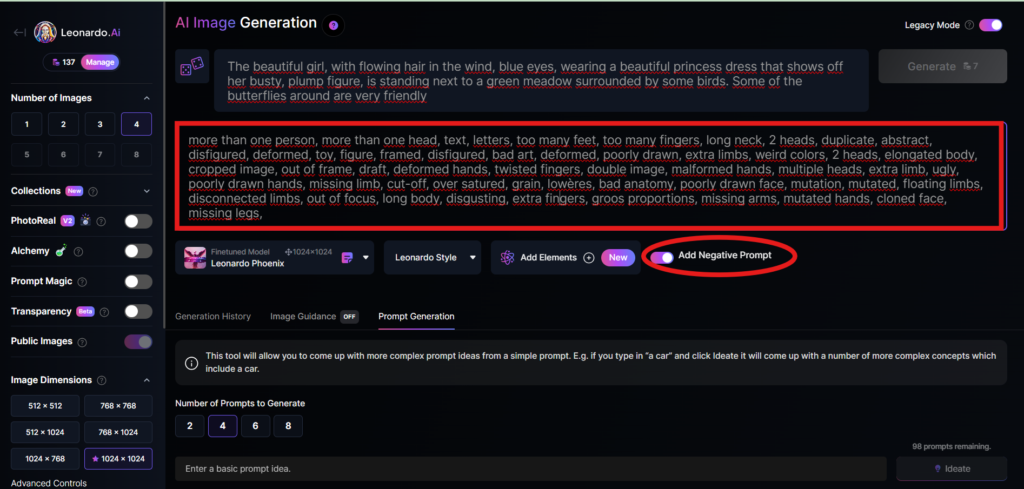
Add a negative prompt
As in the example above, I created negative prompts to ensure the resulting images were error-free, including: “more than one person, more than one head, text, letters, too many feet, too many fingers, long neck, 2 heads, duplicate, abstract, disfigured, deformed, toy, figure, framed, disfigured, bad art, deformed, poorly drawn, extra limbs, weird colors, 2 heads, elongated body, cropped image, out of frame, draft, deformed hands, twisted fingers, double image, malformed hands, multiple heads, extra limb, ugly, poorly drawn hands, missing limb, cut-off, over satured, grain, lowères, bad anatomy, poorly drawn face, mutation, mutated, floating limbs, disconnected limbs, out of focus, long body, disgusting, extra fingers, groos proportions, missing arms, mutated hands, cloned face, missing legs,”
Here are the basic steps for new users to create a simple image with Leonardo AI. In the next article, I will guide you through advanced details to create various types of images for different purposes. You can start your free trial with Leonardo AI here:

https://buildingraja.com/agent/oraclerzp391/
Brooklyn properties need strong and well-maintained concrete surfaces. Cracks and uneven areas can affect both appearance and safety. concrete crack repair Brooklyn is a good resource to consider.
This article makes a good point about choosing movers with strong local knowledge. For Washington DC moving needs, Washington DC full service movers is worth a look.
Helpful read for anyone getting ready to relocate. With the right Santa Ana movers, the process becomes much easier, and Santa Ana international movers is worth checking out.
Appreciate the detailed insights. For more, visit Pojecet 100 marketing services .
Hey there, You’ve done a fantastic job. I will certainly digg it and in my opinion recommend to my friends. I’m sure they’ll be benefited from this web site.
Nomoho puede ser útil cuando el moho de las paredes reaparece después de limpiarlo; más en por qué sale moho en las paredes .
https://aboutnursernjobs.com/author/karenjoo84/
I’ve been searching for the very best plumbing technicians near me and kept seeing superb testimonials regarding Eary Pipes in St Augustine and Ponte Vedra Beach. Their quick feedback, reasonable rates, and professional work truly amazed me Plumber
This guide makes choosing a pizza restaurant easier. I appreciate the clear explanation of the different crust styles pizza restaurant
https://intercom.help/bonuscode/es/articles/17721415-bono-de-casino-chips-2026-200-hasta-4-000-y-requisitos
I’ve been researching options for moving a vehicle in and out of San Antonio, and this post was really helpful. Anyone comparing services may also want to check San Antonio vehicle transport for more car transport information.
Great blog here! Also your site loads up very fast!
What host are you using? Can I get your affiliate link to your host?
I wish my website loaded up as fast as yours lol
https://xn--p3tz64k.xn--cksr0a.life/home.php?mod=space&uid=23447
https://intercom.help/welcome-bonus/en/articles/17604645
I like the valuable info you provide on your articles.
I will bookmark your weblog and check once more here frequently.
I am slightly sure I will be informed plenty of new stuff right here!
Good luck for the following!
This guide makes choosing a pizza restaurant easier. I appreciate the clear explanation of the different crust styles pizza restaurant
depilación láser alejandrita Barcelona El riesgo de resultados irregulares puede ser mayor con IPL si no se personaliza bien.
If you’re upgrading home security in Orlando, Florida, this locksmith in Orlando FL provided clear options and solid installation help. locksmith near me .
I appreciate the practical advice here. Long-distance moving from Lynchburg can feel overwhelming, especially when planning timelines, packing, and transportation. If it’s helpful to readers, I found another related resource here: Cheap movers Lynchburg