
The basic version of Leonardo AI is available for free, although it comes with a daily limit of 150 tokens. For those who need more capabilities and fewer restrictions, premium plans start at $10 per month. However, the free version is sufficient for most beginners. It is recommended to try the free version before opting for the paid one. Here is your guide to creating images with Leonardo AI.
Here are 5 steps to get started with Leonardo AI:
Start:
Go to the Leonardo AI App:
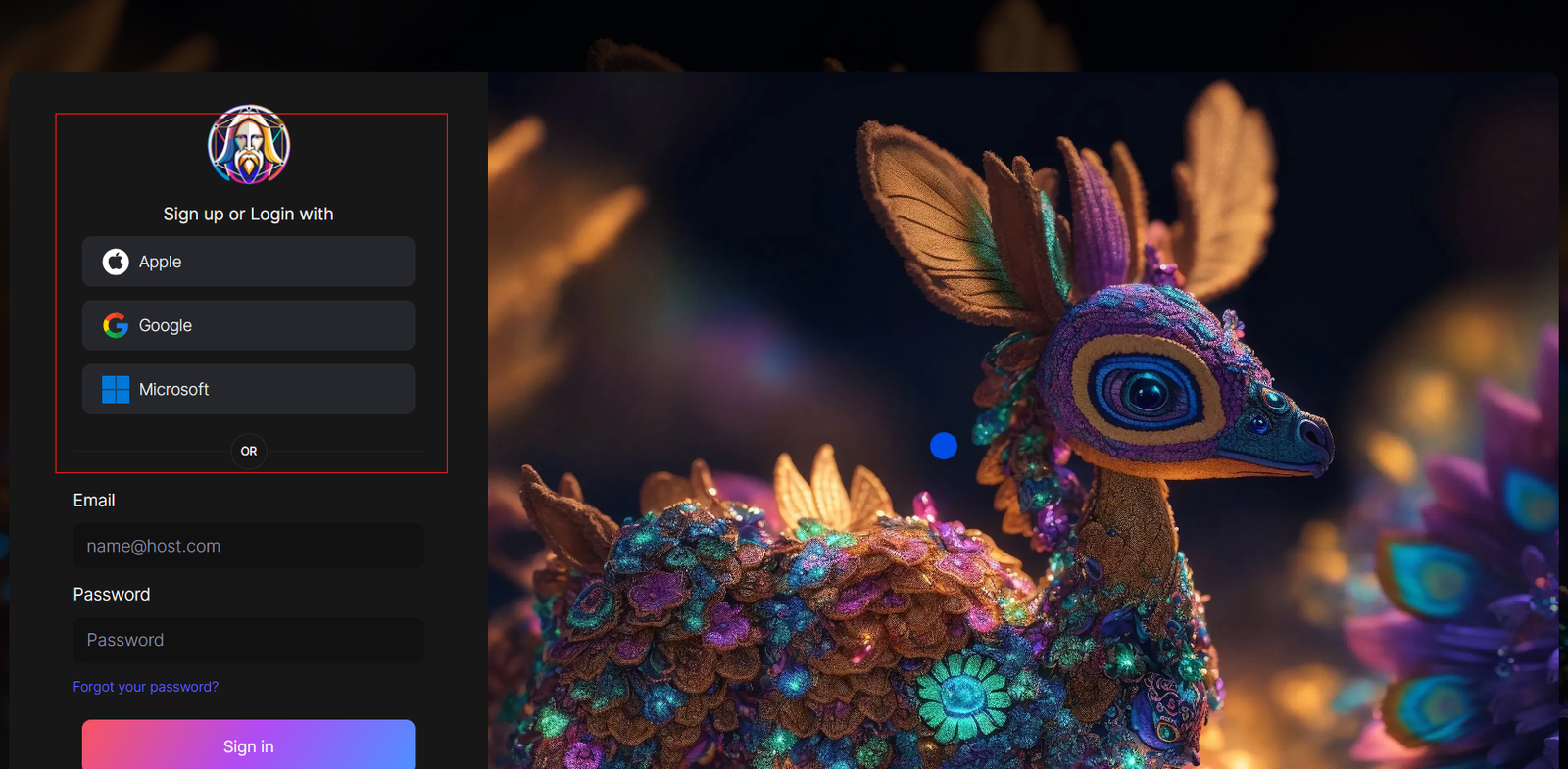
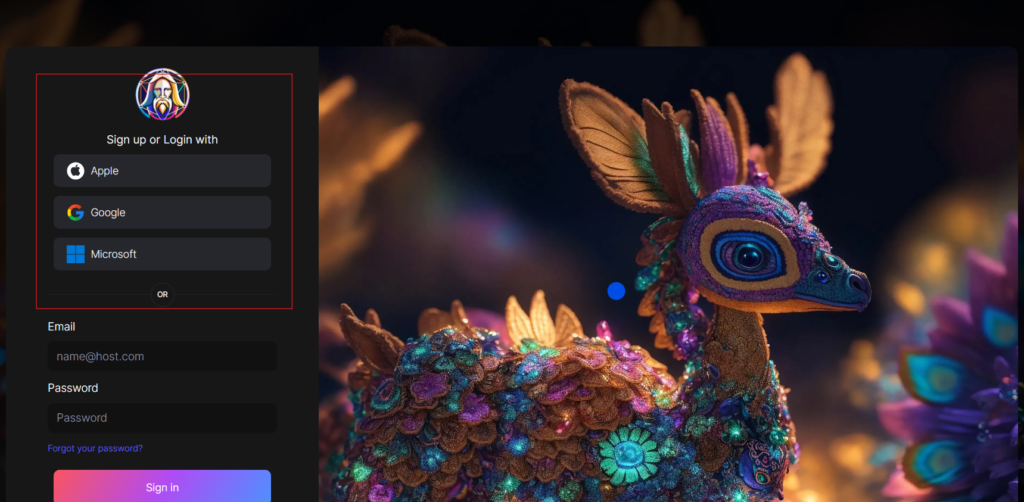
You can sign in with your Apple, Google, Microsoft account, or email account. Then, sign in with your newly created account.
Navigate to the image creation tool
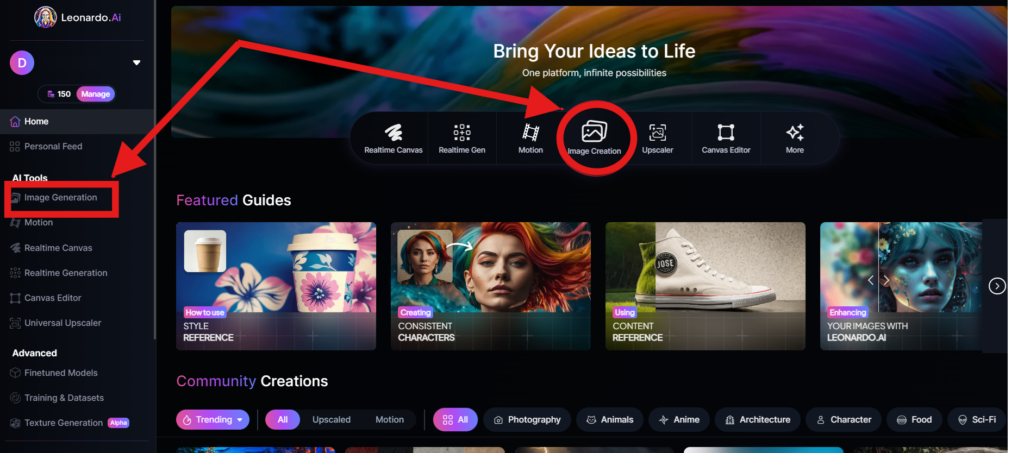
On the app.leonardo.ai homepage, select the ‘Image Generation’ option from the left panel, click on the icon in the middle or use the ‘Image Creation’ button located in the middle
Create your first image
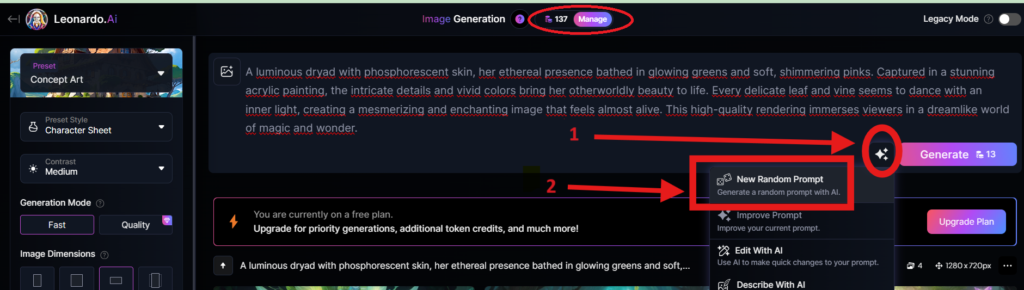
In the prompt field at the top you can immediately create your desired Image. Or you can also create a reminder with the available AI suggestions in 2 ways:
+ Generate a random photo: 1, Click to “New Random Prompt” then 2. click Generate
+ Create a photo with an AI description by an image that you want to get the original idea. Then you edit according to your creativity
Wait about 20 seconds for Leonardo AI to generate the images, and you will receive four stunning high-resolution images as follows:
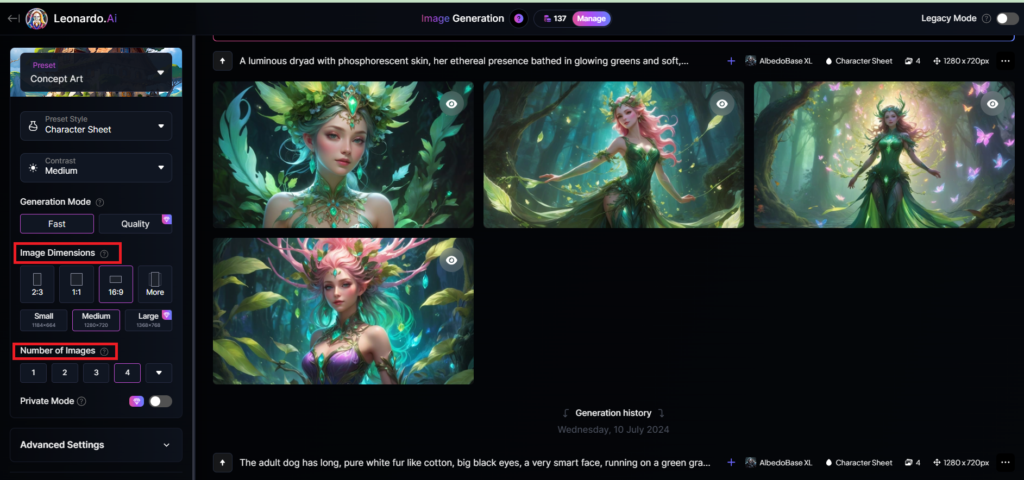
You can select the image size in the “Image Dimensions” section, which includes sizes like 2:3, 1:1, 16:9, and more options under “More” on the left. Alternatively, you can choose the number of images in the “Number of Images” section, with a maximum of 8 images that can be generated.
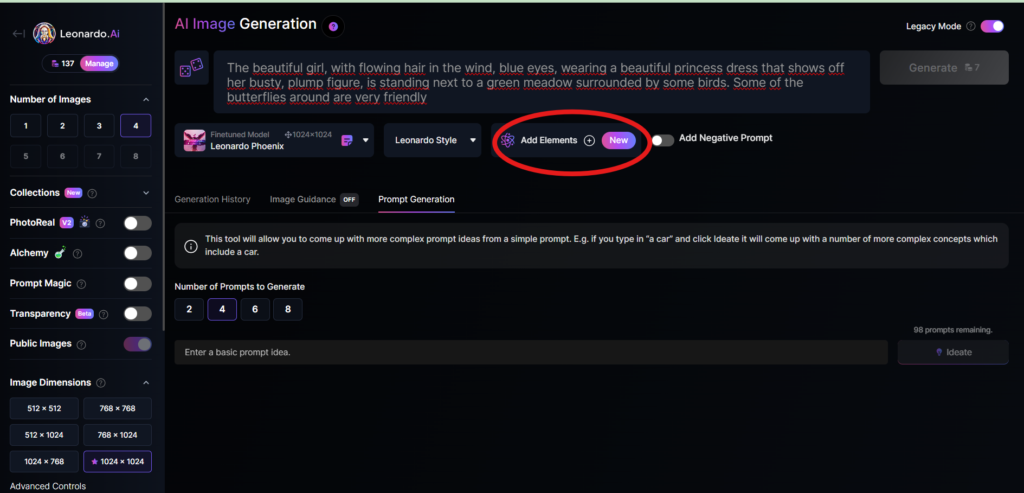
Add Elements
Use the drop-down menu under “Add Elements” to select a specific element such as Coloring Book, Folk Art Illustration, Children’s Illustration, Cartoon & Anime, or Classic Style Christmas Illustration. Although you can select multiple elements, Leonardo advises that choosing more than two elements may lead to unpredictable results.
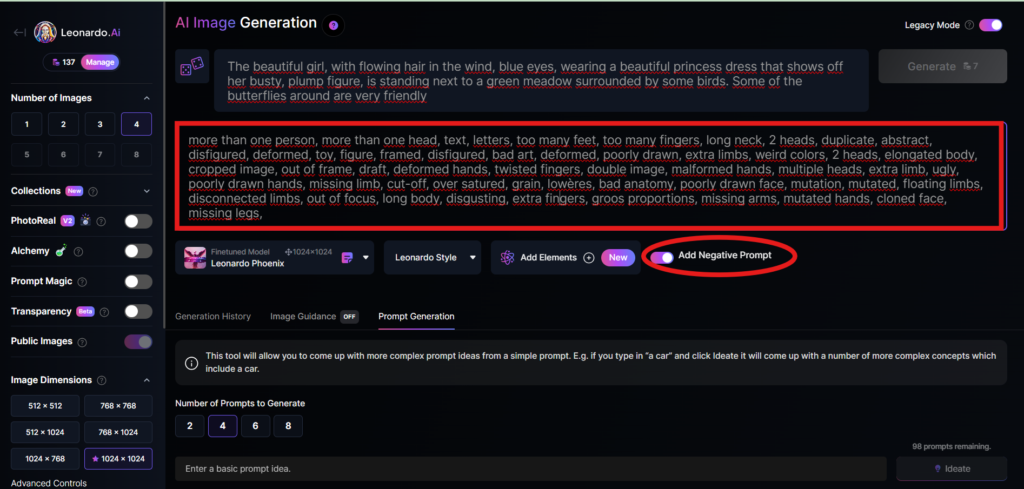
Add a negative prompt
As in the example above, I created negative prompts to ensure the resulting images were error-free, including: “more than one person, more than one head, text, letters, too many feet, too many fingers, long neck, 2 heads, duplicate, abstract, disfigured, deformed, toy, figure, framed, disfigured, bad art, deformed, poorly drawn, extra limbs, weird colors, 2 heads, elongated body, cropped image, out of frame, draft, deformed hands, twisted fingers, double image, malformed hands, multiple heads, extra limb, ugly, poorly drawn hands, missing limb, cut-off, over satured, grain, lowères, bad anatomy, poorly drawn face, mutation, mutated, floating limbs, disconnected limbs, out of focus, long body, disgusting, extra fingers, groos proportions, missing arms, mutated hands, cloned face, missing legs,”
Here are the basic steps for new users to create a simple image with Leonardo AI. In the next article, I will guide you through advanced details to create various types of images for different purposes. You can start your free trial with Leonardo AI here:


Great overview! For more, visit Indian mix grill.
Useful advice! For more, visit Indian mix grill.
https://b52club-m7.za.com/ Những thay đổi chiến thuật quan trọng giúp các đội bóng tạo nên bước ngoặt trận đấu
Discover practical resources for addiction rehabilitation at Nasha Mukti Kendra in Noida.
The actions pointed out here make a lot of sense. Looking for proper rehab is essential– great write-up. Nasha Mukti Kendra in Noida
https://www.tunionfans.com/home.php?mod=space&uid=11225&do=profile&from=space
Appreciate the thorough information. For more, visit double glazing replacement in Mortlake .
Nicely done! Find more at Indian mix grill.
I think that what you posted made a bunch of sense. However, what about this?
what if you were to create a killer title? I mean, I don’t want to tell you how to
run your blog, but what if you added something
to maybe get people’s attention? I mean Leonardo Ai Tutorial Step by step - Top1 AI
Tools is a little plain. You could peek at Yahoo’s front page
and see how they create news titles to get viewers to click.
You might add a video or a related picture or two to grab readers interested about everything’ve written.
Just my opinion, it might bring your blog a little livelier.
Here is my homepage: commercial real estate executive recruiters
Dlugo nie wiedzialem, ze da sie zagrac w kasynie bez wplaty i przy okazji wyplacic wygrana. Caly mechanizm ogarnalem dopiero, gdy przeczytalem serwis darmowe 50 zl za rejestracje kasyno.
Thanks for the useful suggestions. Discover more at double glazing repair Streatham .
https://start.me/p/zpqmNM/mejor-cdigo-1xbet-2026-men444-100
Explore structured rehabilitation stages through Nasha Mukti Kendra in Noida to understand the treatment journey.
Helpful suggestions! For more, visit palm desert marketing consultant .
Appreciate the thorough information. For more, visit Indian mix grill.
We are a group of volunteers and starting a new scheme in our community.
Your site provided us with valuable info to work on. You’ve done
a formidable job and our entire community will be thankful to you.
my blog :: real estate executive search firms
Dla kazdego, kto szuka promocji na spokojny start: aktualne propozycje zebrano w rankingu darmowe 50 zl za rejestracje kasyno. Do kazdej dolaczono limit wyplaty i obrot.
https://www.beskromny.ru/
This post highlights why it’s important to choose movers who are familiar with the unique demands of Los Angeles moving. Los Angeles international movers
Great read for anyone preparing to relocate. Peoria residents can reduce moving stress by planning early and considering Long distance movers Peoria .