
The basic version of Leonardo AI is available for free, although it comes with a daily limit of 150 tokens. For those who need more capabilities and fewer restrictions, premium plans start at $10 per month. However, the free version is sufficient for most beginners. It is recommended to try the free version before opting for the paid one. Here is your guide to creating images with Leonardo AI.
Here are 5 steps to get started with Leonardo AI:
Start:
Go to the Leonardo AI App:
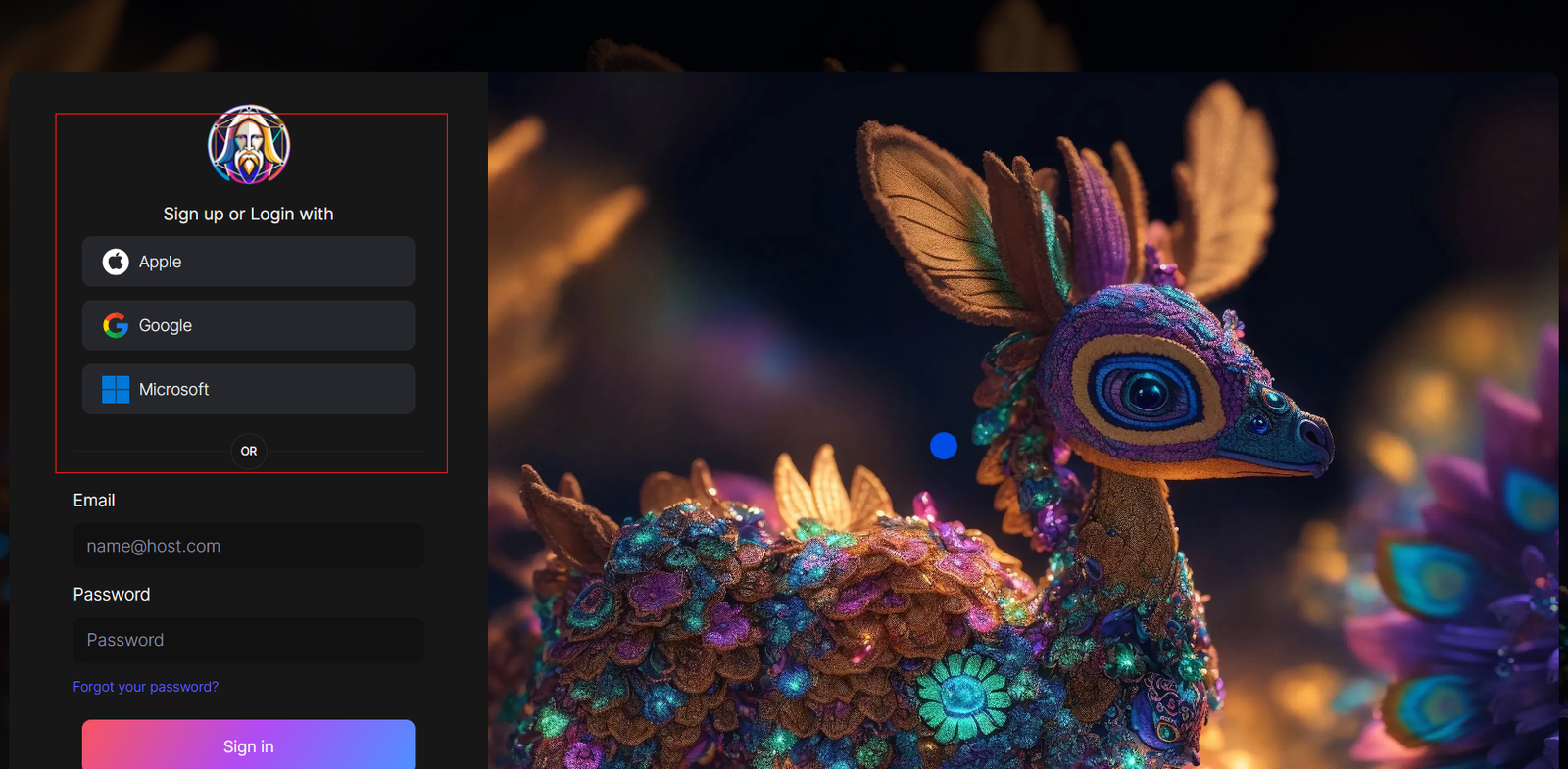
You can sign in with your Apple, Google, Microsoft account, or email account. Then, sign in with your newly created account.
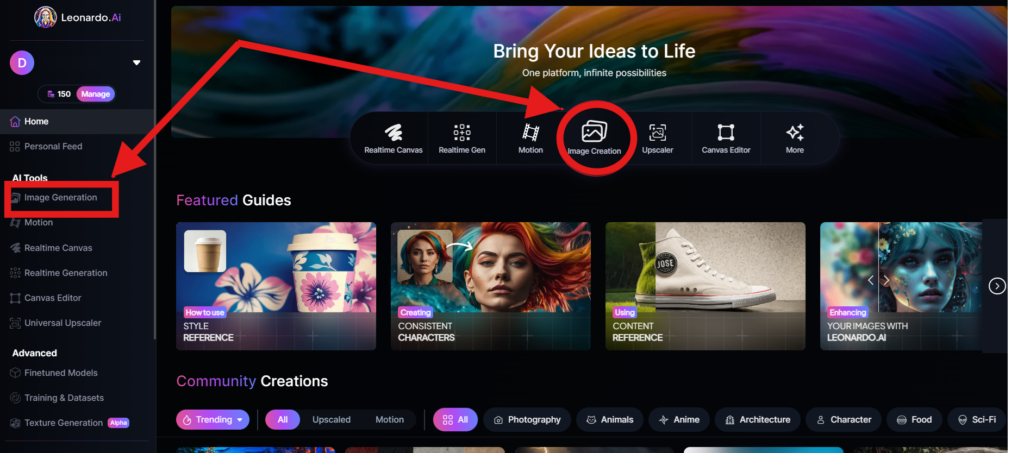
Navigate to the image creation tool
On the app.leonardo.ai homepage, select the ‘Image Generation’ option from the left panel, click on the icon in the middle or use the ‘Image Creation’ button located in the middle
Create your first image
In the prompt field at the top you can immediately create your desired Image. Or you can also create a reminder with the available AI suggestions in 2 ways:
+ Generate a random photo: 1, Click to “New Random Prompt” then 2. click Generate
+ Create a photo with an AI description by an image that you want to get the original idea. Then you edit according to your creativity
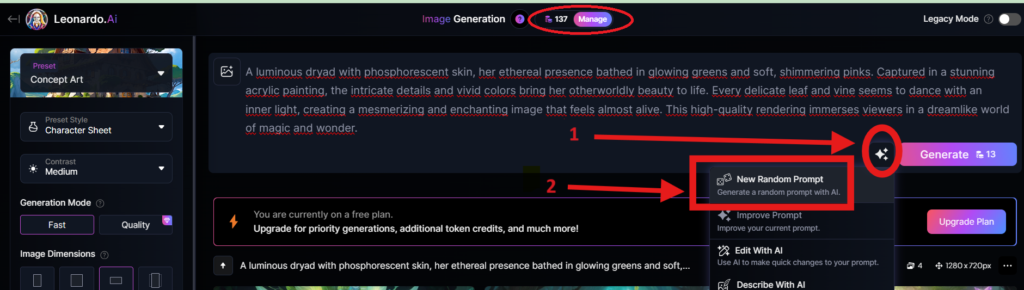
Wait about 20 seconds for Leonardo AI to generate the images, and you will receive four stunning high-resolution images as follows:
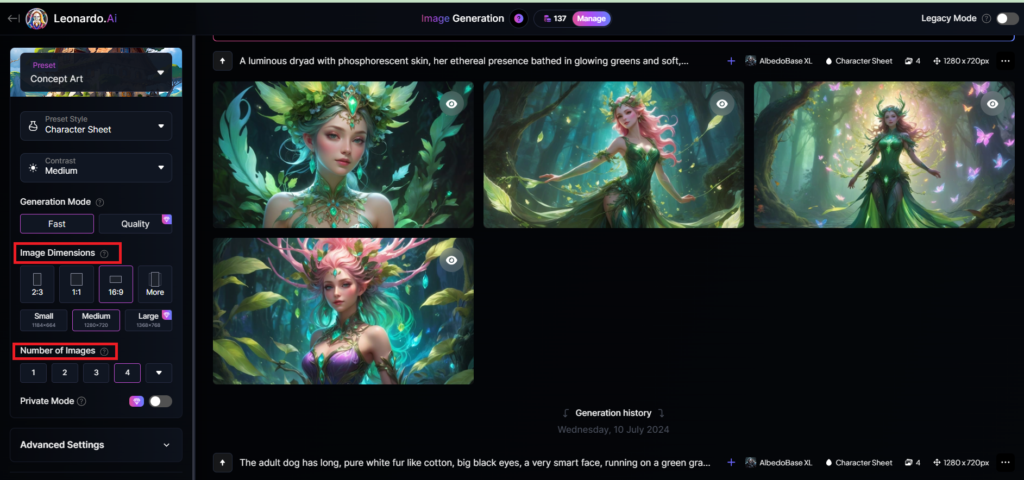
You can select the image size in the “Image Dimensions” section, which includes sizes like 2:3, 1:1, 16:9, and more options under “More” on the left. Alternatively, you can choose the number of images in the “Number of Images” section, with a maximum of 8 images that can be generated.
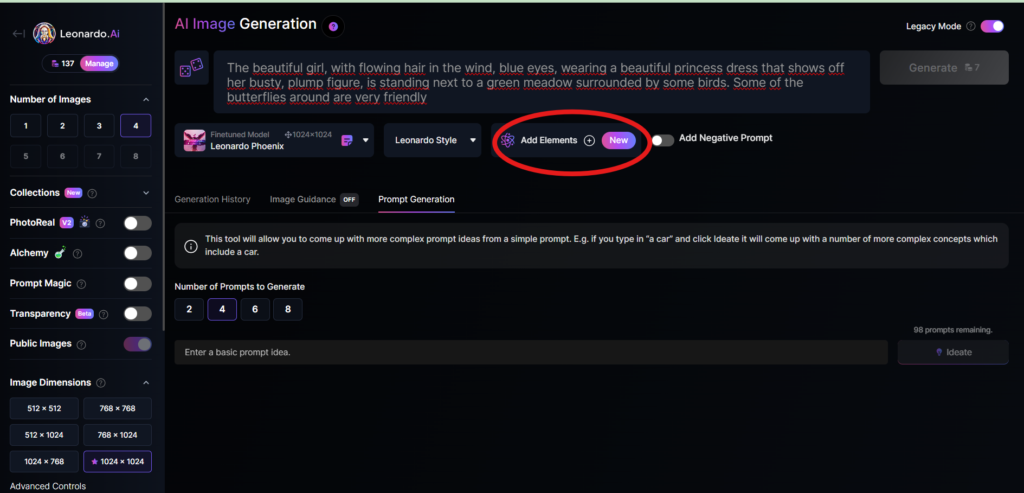
Add Elements
Use the drop-down menu under “Add Elements” to select a specific element such as Coloring Book, Folk Art Illustration, Children’s Illustration, Cartoon & Anime, or Classic Style Christmas Illustration. Although you can select multiple elements, Leonardo advises that choosing more than two elements may lead to unpredictable results.
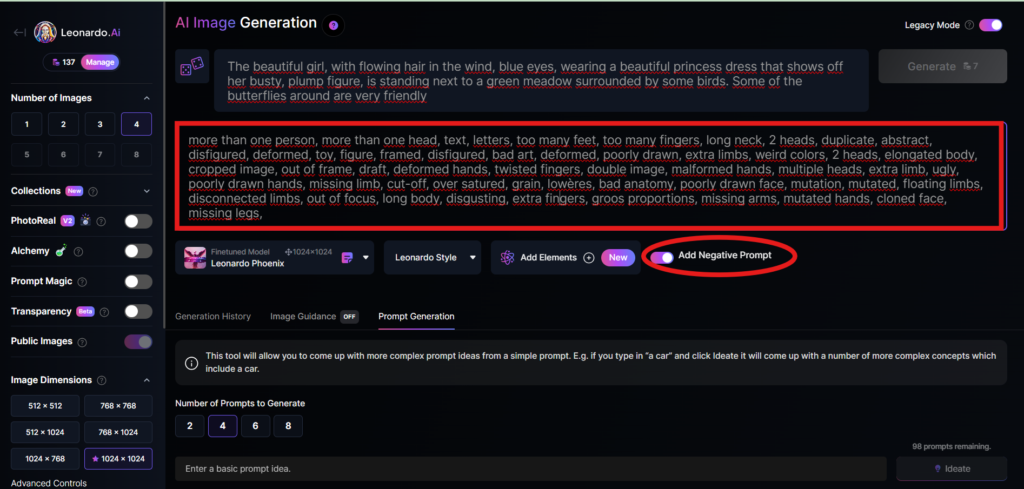
Add a negative prompt
As in the example above, I created negative prompts to ensure the resulting images were error-free, including: “more than one person, more than one head, text, letters, too many feet, too many fingers, long neck, 2 heads, duplicate, abstract, disfigured, deformed, toy, figure, framed, disfigured, bad art, deformed, poorly drawn, extra limbs, weird colors, 2 heads, elongated body, cropped image, out of frame, draft, deformed hands, twisted fingers, double image, malformed hands, multiple heads, extra limb, ugly, poorly drawn hands, missing limb, cut-off, over satured, grain, lowères, bad anatomy, poorly drawn face, mutation, mutated, floating limbs, disconnected limbs, out of focus, long body, disgusting, extra fingers, groos proportions, missing arms, mutated hands, cloned face, missing legs,”
Here are the basic steps for new users to create a simple image with Leonardo AI. In the next article, I will guide you through advanced details to create various types of images for different purposes. You can start your free trial with Leonardo AI here:

Participate in Jacksonville community forums with transparent, helpful advice rather than promotional comments. Jacksonville moving companies
Azusa moving companies can help with everything from packing to heavy lifting, but preparation still matters. Local movers Azusa is useful for organizing the process.
blackjack verdopplungsstrategie
My page; jackpot slots Niedriger einsatz (https://www.revistaplutarco.com.br/beste-slots-mit-einzahlung-2026/)
This was a helpful read for local moving preparation. West Palm Beach residents should take time to find movers they can trust. West Palm Beach FL Movers can help with that search.
Oh my goodness! Amazing article dude! Thank you so much, However I am having
troubles with your RSS. I don’t know the reason why I can’t join it.
Is there anybody getting similar RSS problems? Anyone that knows the answer will you kindly respond?
Thanx!!
This was a wonderful post. Check out nómina y sueldos Saltillo for more.
https://www.sosyalciniz.net/author/mattervxc962/
casino slots drop and wins
Here is my website :: einsatzpause Bei spielautomaten
Washington car moving companies can vary a lot in pricing, so getting multiple quotes is always a smart move before making a final decision. Washington vehicle shipping
La combinación de zona correcta y frecuencia adecuada mejora la experiencia general. eventos Les Corts
La criolipólisis se ha convertido en un recurso muy popular para quienes desean mejorar su contorno corporal de forma segura y progresiva. resultados criolipolisis
Excellent description of monitoring indicators and injury assessment. For knowledgeable recuperation assistance that prioritizes welfare, check bow shot deer tracking Lapeer County .
Appreciate the comprehensive advice. For more, visit Residential Moving Services .
Nice article on cooking area health. For a professional cooking area deep clean, check availability with one-time deep cleaning Granite Bay .
Avoid generic phrases like “Great post” followed by Office moving companies Jacksonville , because that looks promotional.
This was a helpful introduction to Restorative Dentistry and its treatment options.
How does Restorative Dentistry help preserve a damaged natural tooth?
I’m interested in Restorative Dentistry after breaking one of my molars Restorative Dentistry
Hello there! I just wanted to share my short personal story!
People call me Emily, a stay-at-home mom-to-be who recently learned how to navigate Paybis.
When I first got started, I was intimidated by order books.
But Paybis changed the whole game for me because there are no complex order
books.
Here is my actual financial breakdown: I started out with only
$300 I saved up from my household budget. Through low commission debit card buys on Paybis, I steadily accumulated USDT during local price dips and off-ramped straight to my credit card whenever prices swung up.
Over the past 6 months, I managed to generate a clean $14,
200 in arbitrage and swing profits! The best part is that Paybis processed all my fiat withdrawals without
delays.
Now for the most exciting news: I am currently 8
months pregnant! With these financial gains, I can fully fund our baby preparation without taking loans!
This money is directly paying for:
1. A private hospital delivery package (approx $3,800).
2. fully furnishing our baby’s room ($2,500).
3. top-of-the-line baby gear and travel gear (about $1,600).
4. A 6-month supply of premium organic diapers,
formula, and baby care essentials ($2,500).
5. an initial deposit into a high-yield savings fund for our baby!
If I could turn things around from my living room sofa, do not hesitate to give Paybis a try!
Best of luck with your financial goals!
For anyone moving from Washington to another state, it’s important to choose a company familiar with interstate auto transport rules. DC Auto Transport
https://intercom.help/bonuscode/hr/collections/19760839
https://teletype.link/shipmentfnc773