

The basic version of Leonardo AI is available for free, although it comes with a daily limit of 150 tokens. For those who need more capabilities and fewer restrictions, premium plans start at $10 per month. However, the free version is sufficient for most beginners. It is recommended to try the free version before opting for the paid one. Here is your guide to creating images with Leonardo AI.
Here are 5 steps to get started with Leonardo AI:
Start:
Go to the Leonardo AI App:
You can sign in with your Apple, Google, Microsoft account, or email account. Then, sign in with your newly created account.
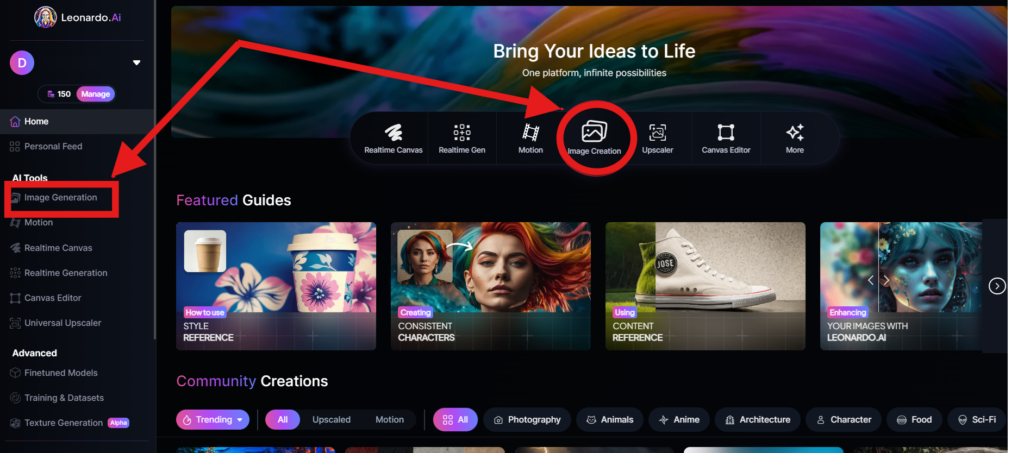
Navigate to the image creation tool
On the app.leonardo.ai homepage, select the ‘Image Generation’ option from the left panel, click on the icon in the middle or use the ‘Image Creation’ button located in the middle
Create your first image
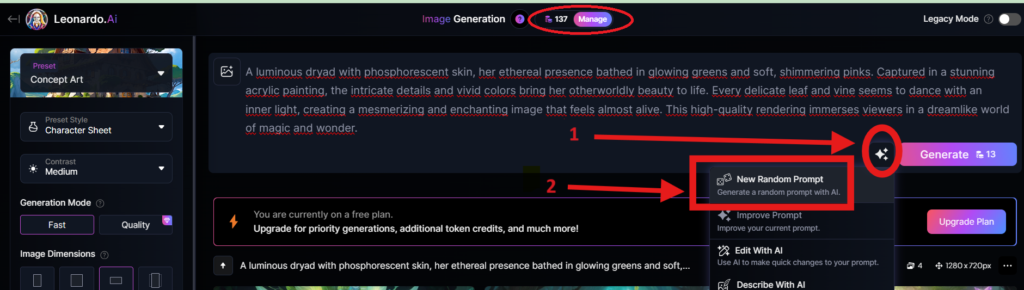
In the prompt field at the top you can immediately create your desired Image. Or you can also create a reminder with the available AI suggestions in 2 ways:
+ Generate a random photo: 1, Click to “New Random Prompt” then 2. click Generate
+ Create a photo with an AI description by an image that you want to get the original idea. Then you edit according to your creativity
Wait about 20 seconds for Leonardo AI to generate the images, and you will receive four stunning high-resolution images as follows:
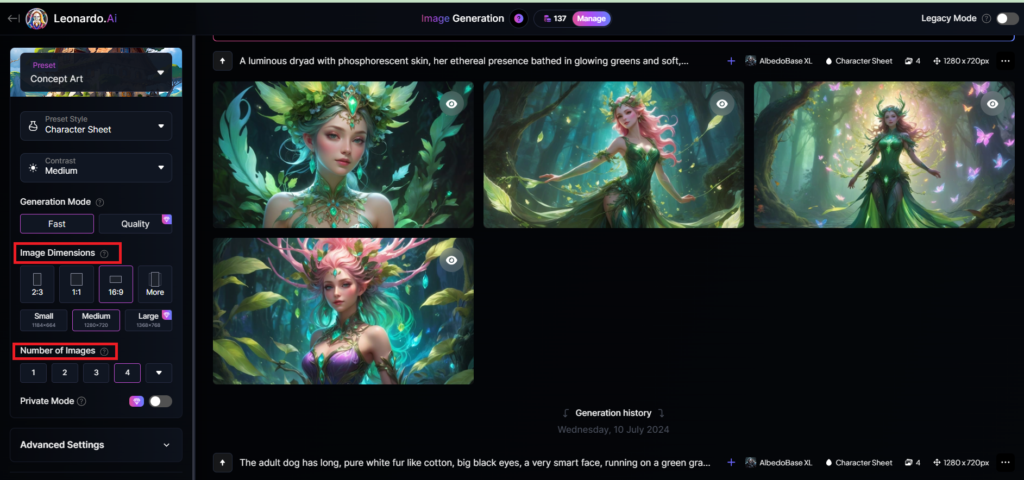
You can select the image size in the “Image Dimensions” section, which includes sizes like 2:3, 1:1, 16:9, and more options under “More” on the left. Alternatively, you can choose the number of images in the “Number of Images” section, with a maximum of 8 images that can be generated.
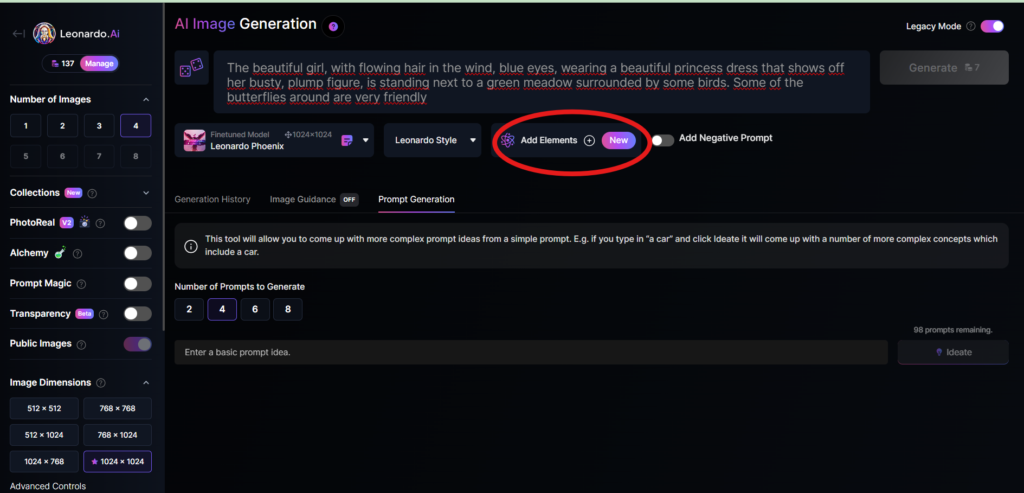
Add Elements
Use the drop-down menu under “Add Elements” to select a specific element such as Coloring Book, Folk Art Illustration, Children’s Illustration, Cartoon & Anime, or Classic Style Christmas Illustration. Although you can select multiple elements, Leonardo advises that choosing more than two elements may lead to unpredictable results.
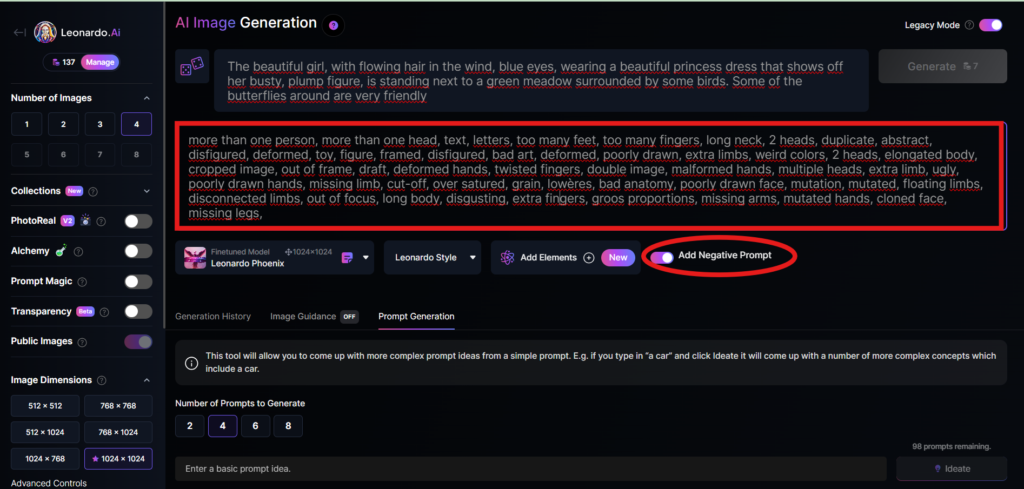
Add a negative prompt
As in the example above, I created negative prompts to ensure the resulting images were error-free, including: “more than one person, more than one head, text, letters, too many feet, too many fingers, long neck, 2 heads, duplicate, abstract, disfigured, deformed, toy, figure, framed, disfigured, bad art, deformed, poorly drawn, extra limbs, weird colors, 2 heads, elongated body, cropped image, out of frame, draft, deformed hands, twisted fingers, double image, malformed hands, multiple heads, extra limb, ugly, poorly drawn hands, missing limb, cut-off, over satured, grain, lowères, bad anatomy, poorly drawn face, mutation, mutated, floating limbs, disconnected limbs, out of focus, long body, disgusting, extra fingers, groos proportions, missing arms, mutated hands, cloned face, missing legs,”
Here are the basic steps for new users to create a simple image with Leonardo AI. In the next article, I will guide you through advanced details to create various types of images for different purposes. You can start your free trial with Leonardo AI here:


I’ve been surfing on-line greater than three hours as of late, but I by no means found any
fascinating article like yours. It is beautiful price sufficient for me.
In my opinion, if all webmasters and bloggers made excellent content material as you did,
the web might be much more helpful than ever before.
https://www.mountexperience.com/wp-content/pgs/melbet_promo_code.html
https://www.popdaily.com.tw/user/548089
rejestracja total casino50 zl bonus bez depozytu najlepsze kasyno na telefon free spin no deposit bonus
https://zapovidanasyla.com.ua/
kasyno na iphonepodobne do total casino kasyno online opinie kamerki online ruletka
https://triumphmotorhanoi.com/pages/kameny_na_stene_v_koridore_kak_sozdaty_elegantnyy_i_funkcionalynyy_interyer.html
20 zl bez depozytu kasynokasyno online minimalna wpЕ‚ata najlepsze kasyno na telefon total casino ile trwa wypЕ‚ata
https://specopttorg.com.ua/
https://lesbian.com/news/vyigryvaem_blayndy_osnovy_stilinga.html
Hey everyone! After reading this piece, and I really wanted
to chime in. As a sixteen-year-old guy stuck at home with a disability,
I do a lot of web research.
My parents were struggling with slow international wire fees
for their business expenses. I decided to step up, so I analyzed financial platforms and introduced them to Paybis.
The economics are game-changing. For starters, Paybis offers 0% commission on the initial debit or credit card transaction. After that, the fee is
a flat 2.49%, plus the blockchain network fee.
Compared to Western Union, the cost difference is massive.
I helped them pass KYC in just a few minutes, and now they buy USDT directly with USD or EUR.
Paybis supports dozens of global fiat options! Plus, the funds go directly to a private wallet, meaning no
custodial risk.
Brilliant post, it spot-on describes how I helped my family save money!
Wow, marvelous blog layout! How long have you
been blogging for? you make blogging look easy.
The overall look of your web site is fantastic, let alone
the content!
Арендовать эскортницу на
выходной https://ataxiav.com/vob/xe/Events_News/3511045
Hello there! Just read this piece, and I just had to chime
in. As a sixteen-year-old teenager who uses a wheelchair, I have a lot of screen time.
My parents were struggling with massive bank fees for their overseas transfers.
I wanted to help them out, so I dug into financial platforms and introduced them to
Paybis.
The financials are game-changing. For starters, Paybis offers 0% commission on the
initial debit or credit card transaction. After that,
the fee is a transparent 2.49%, plus the standard miner fee.
Compared to Western Union, the cost difference is massive.
I helped them do the identity verification in just a few minutes, and now they buy stablecoins
directly with their local fiat. Paybis supports over 40 fiat currencies!
Plus, the funds go straight to their external wallet, meaning no custodial risk.
Awesome write-up, it totally validates how I helped my family save money!
kasyno online szybkie wypЕ‚aty pistolo kasyno online
First of all I would like to say great blog! I had a quick question in which I’d like to ask if you don’t mind.
I was curious to find out how you center yourself and clear your
thoughts prior to writing. I have had difficulty clearing my
mind in getting my thoughts out there. I truly do take pleasure in writing but
it just seems like the first 10 to 15 minutes
are generally wasted simply just trying to figure out how
to begin. Any ideas or hints? Many thanks!
https://learn.mystudyseries.co.nz/members/1xbetbest2027/
Проверенные проститутки с рейтингом {в СПб} http://crativ.co.kr/bbs/board.php?bo_table=info1&wr_id=4107
Link exchange is nothing else except it is only placing the other person’s website link
on your page at appropriate place and other person will also do same for you.
This excellent website certainly has all of the information I wanted concerning this subject and
didn’t know who to ask.
Also visit my homepage – porn photos