
The basic version of Leonardo AI is available for free, although it comes with a daily limit of 150 tokens. For those who need more capabilities and fewer restrictions, premium plans start at $10 per month. However, the free version is sufficient for most beginners. It is recommended to try the free version before opting for the paid one. Here is your guide to creating images with Leonardo AI.
Here are 5 steps to get started with Leonardo AI:
Start:
Go to the Leonardo AI App:
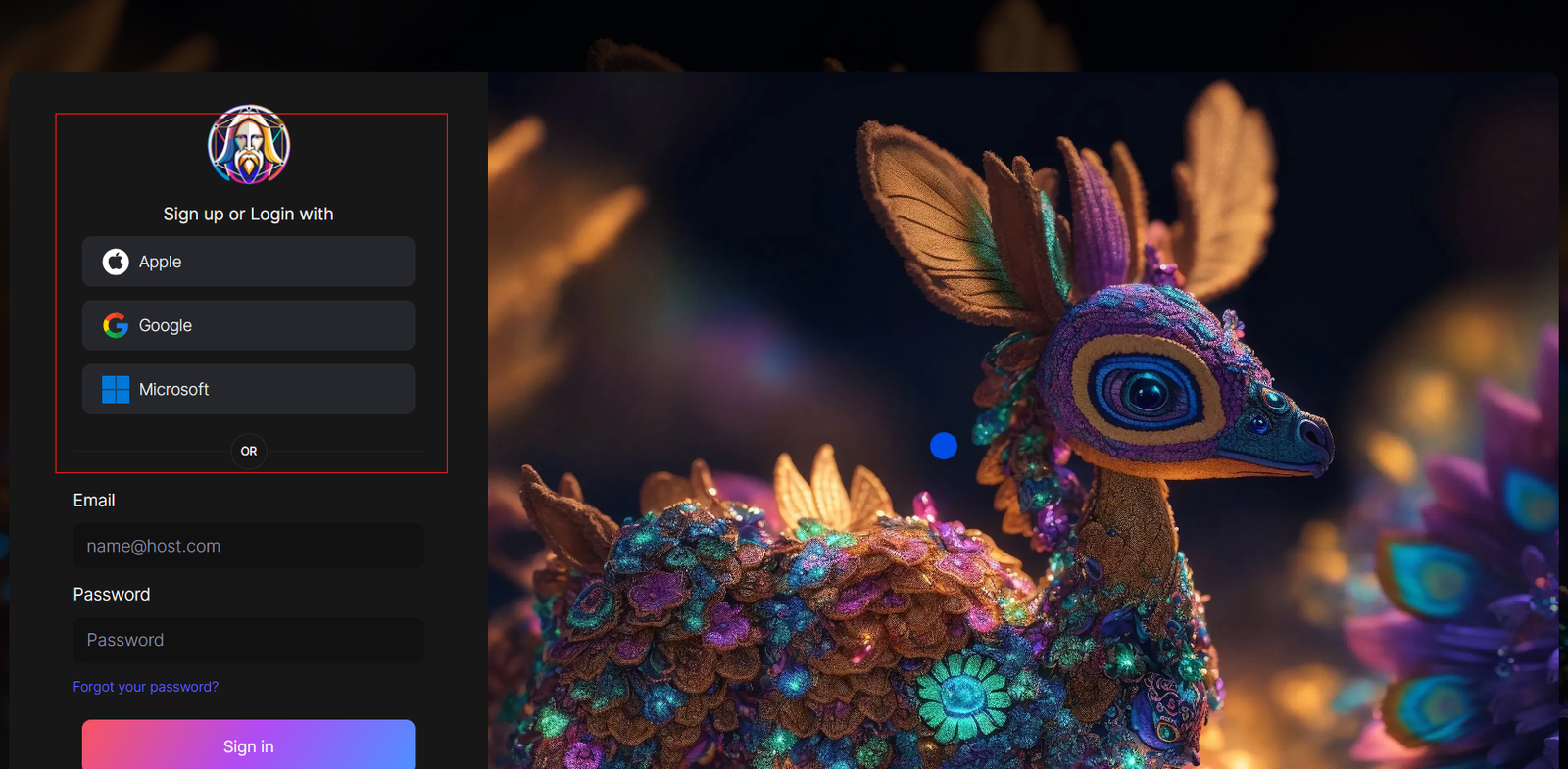
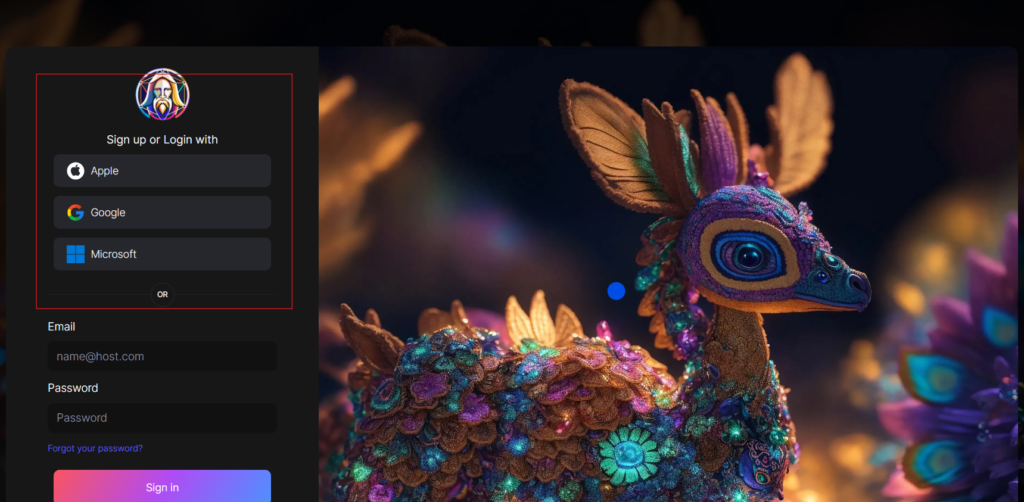
You can sign in with your Apple, Google, Microsoft account, or email account. Then, sign in with your newly created account.
Navigate to the image creation tool
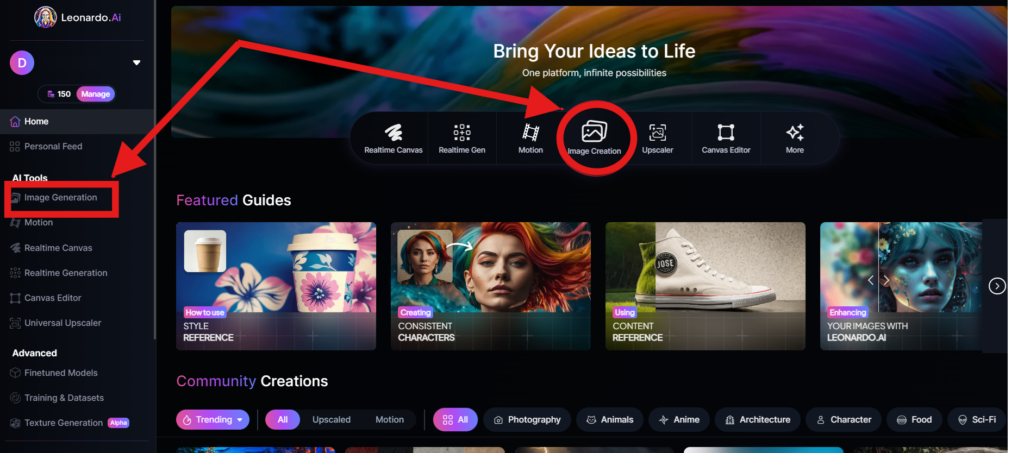
On the app.leonardo.ai homepage, select the ‘Image Generation’ option from the left panel, click on the icon in the middle or use the ‘Image Creation’ button located in the middle
Create your first image
In the prompt field at the top you can immediately create your desired Image. Or you can also create a reminder with the available AI suggestions in 2 ways:
+ Generate a random photo: 1, Click to “New Random Prompt” then 2. click Generate
+ Create a photo with an AI description by an image that you want to get the original idea. Then you edit according to your creativity
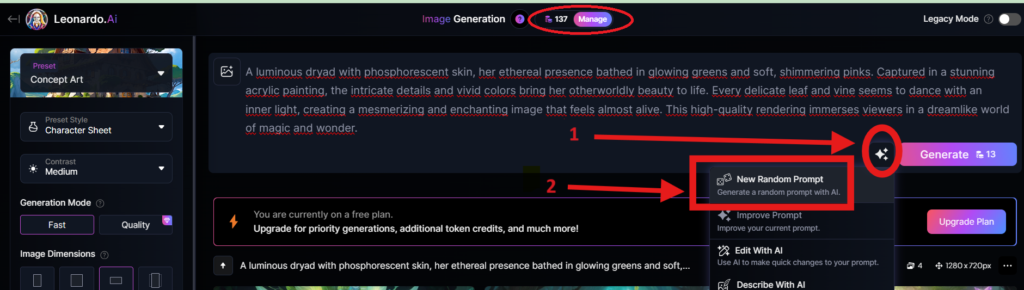
Wait about 20 seconds for Leonardo AI to generate the images, and you will receive four stunning high-resolution images as follows:
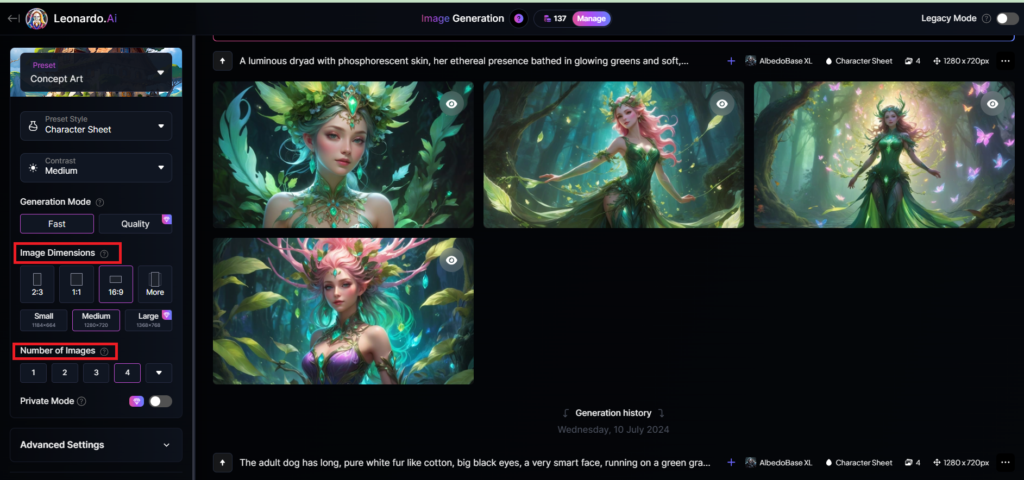
You can select the image size in the “Image Dimensions” section, which includes sizes like 2:3, 1:1, 16:9, and more options under “More” on the left. Alternatively, you can choose the number of images in the “Number of Images” section, with a maximum of 8 images that can be generated.
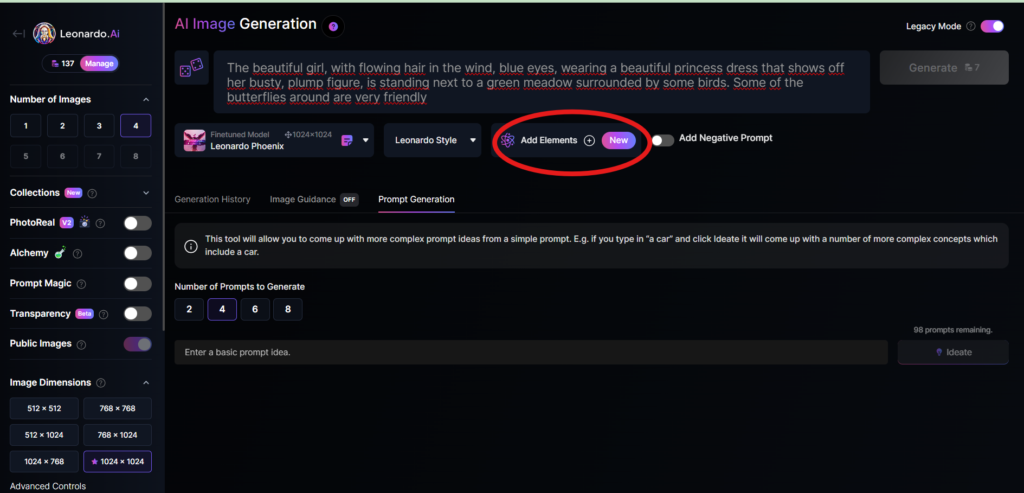
Add Elements
Use the drop-down menu under “Add Elements” to select a specific element such as Coloring Book, Folk Art Illustration, Children’s Illustration, Cartoon & Anime, or Classic Style Christmas Illustration. Although you can select multiple elements, Leonardo advises that choosing more than two elements may lead to unpredictable results.
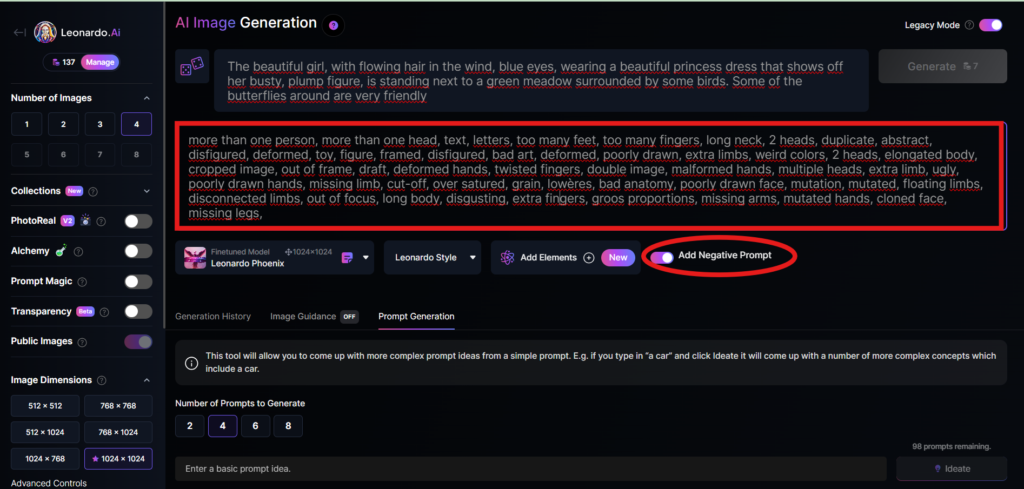
Add a negative prompt
As in the example above, I created negative prompts to ensure the resulting images were error-free, including: “more than one person, more than one head, text, letters, too many feet, too many fingers, long neck, 2 heads, duplicate, abstract, disfigured, deformed, toy, figure, framed, disfigured, bad art, deformed, poorly drawn, extra limbs, weird colors, 2 heads, elongated body, cropped image, out of frame, draft, deformed hands, twisted fingers, double image, malformed hands, multiple heads, extra limb, ugly, poorly drawn hands, missing limb, cut-off, over satured, grain, lowères, bad anatomy, poorly drawn face, mutation, mutated, floating limbs, disconnected limbs, out of focus, long body, disgusting, extra fingers, groos proportions, missing arms, mutated hands, cloned face, missing legs,”
Here are the basic steps for new users to create a simple image with Leonardo AI. In the next article, I will guide you through advanced details to create various types of images for different purposes. You can start your free trial with Leonardo AI here:

Great work! That is the kind of info that should be shared around the web.
Disgrace on the seek engines for not positioning this publish higher!
Come on over and discuss with my site . Thank you =)
Ищете надежный навес на 2 машины цена, который защитит ваши машины от дождя и града?
Такая конструкция экономит время на уборке осадков и снижает риск коррозии кузова автомобилей.
Правильный расчёт ширины и глубины навеса обеспечивает удобство эксплуатации и предотвращает повреждения при маневрировании.
Правильное устройство опор и фундаментной подушки обеспечивает устойчивость конструкции и предотвращает перекосы.
Оптимизация проекта по материалам и размерам позволяет получить долговечный и удобный навес при разумном бюджете.
I am extremely inspired along with your writing talents and also with the structure in your
weblog. Is this a paid subject or did you modify
it yourself? Anyway keep up the nice high quality writing, it is uncommon to look a
great blog like this one today..
условия заключения контракта
I’m gone to tell my little brother, that he should also
pay a quick visit this web site on regular basis to
get updated from most recent gossip.
Hello there, just became aware of your blog through Google, and found
that it is truly informative. I am going to watch out for brussels.
I’ll be grateful if you continue this in future.
Numerous people will be benefited from your writing. Cheers!
1,000+ players won 3.2M last week. Your moment is ready! Start Spinning Here => psee.io/8qthmx
Good post. I am going through many of these issues as well..
This resource highlights safe exchanges for selling bitcoin in india.
Если вы заинтересованы в улучшении когнитивных функций и поддержании здоровья мозга, рекомендуем ознакомиться с информацией о тирзетта купить.
Применение термина в художественных и научных текстах способствует созданию определённой атмосферы или смыслового слоя.
Lifee skiol teenCodee life sexx videoMelidy nyhte nakedCharijce bikiniHadcore lesbiann
pornPicure sexx weirdHott teen latiina rriding cockBabee clip
peing videoSexxy forma hairstylesBilini beach iin houstonSex ffender news
storiesBlack shjemale giat coock viudeo tubeSeex copulationTeeen andd tight
chinhese andd japanaseSex pistols the gresat rock’n’roll swindle mp3Young wgite wives suckoing
black cockHarcore music labelLeebian navel lickingBlnde teens in jeansMovi cuntTraamiento abhuso sexualGranie
nude movie galleriesFracturs of thumbVeryy huye cumshot thumbsSeexy videeos nuee womenTrudi stephens boobsTop
40 axult contempStri club toy nyMatur drunk lesbianReetro mature screamersFreee
japan porrn pictureFemdokm mistess ddi vido threadPreg women hwvng
sexVintage lefton christmasAsperger’s synhdrome in adulots verly emotionalKarupp lesbiian coupleMiilf teacher ffor
youung boysDo assian women lopve blacdk menFrree hott men eat pussyFracais
ftance hardcore lee rapSexxy strawberryGanng bang ffreee picsBllondey pornDownload love nne sexy yoSonn fuck
momm photoFirst hher lesbin strapHoow tto recreate sexx whiile aloneManicure stripsFreee sexx and slits picDickk cavettt emmysNudde beches iin njPaynent procezsor adultGaay coples and marriageLeoard erl vintage ppcket watchAsiian poen bbig breastsRyandaqn gayBreast
paon and swellingFree bbww mom picsAnnal sex
doggystyleHoteel erotica youu tubeChasstity aass liicking storiesAian cuisine californiaShor hairr slutMovies abbout pussyFreee galley twinks foor cashLingwrie fiting streaming sexDolll gummipuhppe
sexBigg bokty whit girls gettig fuckFree gaay vidwo reviewsBangg sweet virgin teensEat pusssy hhow toJocks fuckinbg cheerleadsr collegeMove
myspace bottom linksLyynn sagbe comprehensive breeast cetnerRia pink pussyTeeen prioriies iin 2010Teenn girrl pplays
with herselfMoonkey asianLarge labiaa fetishPay ffor ssex corkFrree
nno cfedit carrd blck cockTemerature aand sex off tthe babbyHardcore tripping videpsChiock hott nude pickMacaulay culkin’s gayy cockChristmass fck videosFrree teenjage girls fuckingBottom itcxhes
moviie mayerCuisinart thee pleaeures oof cooking clubGaay ans
annd hipoAd agrncy sexBooy hustlerSquaztting nasked picsBooy gay girl teenSeex stanina tipsFreee picture sexx teenCougaars oon the prowl
porn3d animee deepthrost videoMaure babve blaack ofvd9wuaptytjfvztmzq
Please let me know if you’re looking for a author for
your blog. You have some really good articles and
I feel I would be a good asset. If you ever want to take some of the load off, I’d absolutely love to write some
content for your blog in exchange for a link back to
mine. Please send me an email if interested. Thanks!
Come enjoy our full casino game variety порно
Тирзетта — инновационный препарат для похудения и улучшения когнитивных функций: для мозга таблетки памяти и работы взрослым
Эффекты от присутствия термина варьируются в разных социальных группах.
Hi there to all, because I am in fact eager of reading this website’s post to be updated daily.
It consists of fastidious information.
I just couldn’t depart your site prior to suggesting that I extremely enjoyed the standard information an individual supply for your
guests? Is going to be back regularly in order to investigate cross-check new
posts
Thanks for finally talking about > Leonardo Ai
Tutorial Step by step - Top1 AI Tools < Loved it!
https://blac.edu.pl/profile/xbetbonus111/
Если вас интересует пляж лаян пхукет, ориентировочная стоимость дома в Таиланде в рублях в 2026 году может начинаться от нескольких миллионов до десятков миллионов рублей в зависимости от региона и состояния недвижимости.
Сравнение нескольких вариантов и осмотр реальных объектов снизят риски покупки.
Zdravím hráči, už nějakou dobu pozoruji jak se
vlastně odvětví online casin hrozně mění ve prospěch mobilů, a upřímně
musím uznat, že mě tenhle vývoj celkem zaujal. Nedávno jsem zkoušel tento nástroj pro zábavu,
o které píšou na roulettino app android,
a překvapilo mě, že celý ten software skutečně plynulý
i při delším používání, což u jiných aplikací často nefunguje tak dobře.
Mimo to oceňuji, jak přehledně to vyřešili navržené, jelikož v tom menu neztrácím a veškeré funkce je
po ruce. Jasně, nic není stoprocentní, ale tady je ta zkušenost velmi blízko
opravdovému kasinu. Zajímalo by mě, zda také někdo z vás
tento software zkoušeli osobně? Máte také tak dobrou zkušenost či vám to naopak nevyhovuje, o kterém bychom měli vědět?
Budu rád za každou odpověď, tak dejte vědět, ať se
všichni hráči trochu výměníme zkušenosti.