
The basic version of Leonardo AI is available for free, although it comes with a daily limit of 150 tokens. For those who need more capabilities and fewer restrictions, premium plans start at $10 per month. However, the free version is sufficient for most beginners. It is recommended to try the free version before opting for the paid one. Here is your guide to creating images with Leonardo AI.
Here are 5 steps to get started with Leonardo AI:
Start:
Go to the Leonardo AI App:
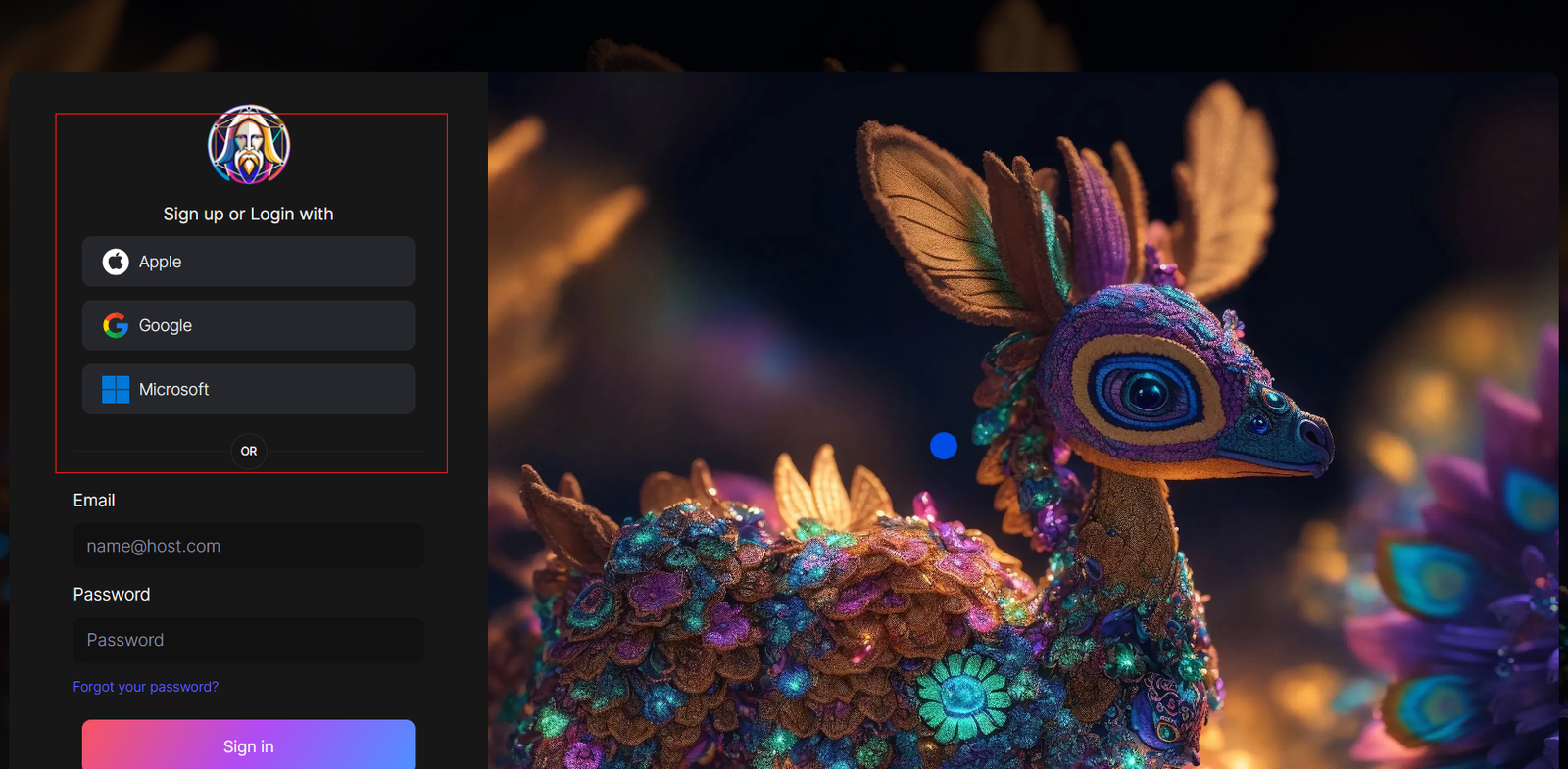
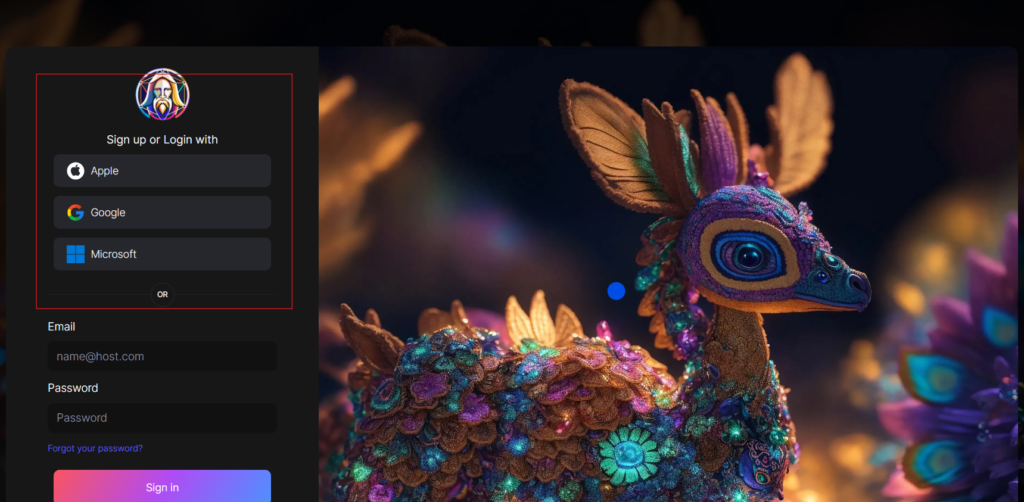
You can sign in with your Apple, Google, Microsoft account, or email account. Then, sign in with your newly created account.
Navigate to the image creation tool
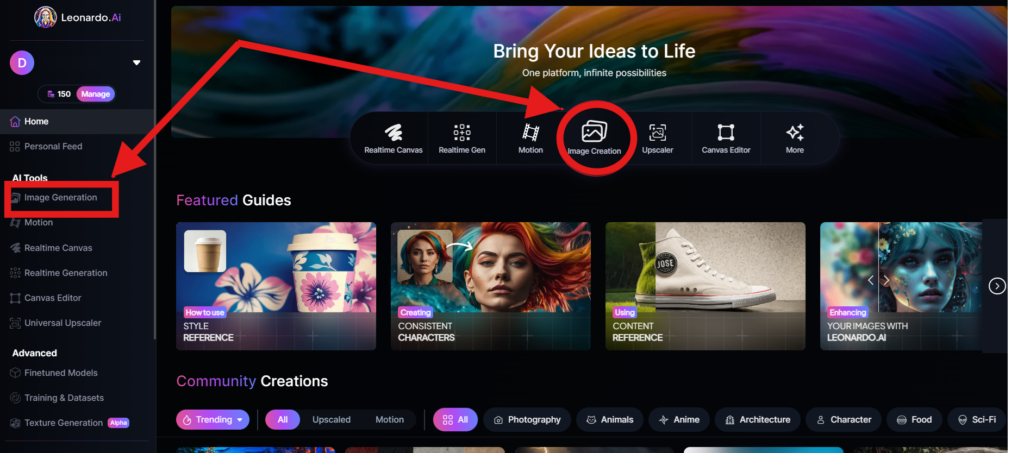
On the app.leonardo.ai homepage, select the ‘Image Generation’ option from the left panel, click on the icon in the middle or use the ‘Image Creation’ button located in the middle
Create your first image
In the prompt field at the top you can immediately create your desired Image. Or you can also create a reminder with the available AI suggestions in 2 ways:
+ Generate a random photo: 1, Click to “New Random Prompt” then 2. click Generate
+ Create a photo with an AI description by an image that you want to get the original idea. Then you edit according to your creativity
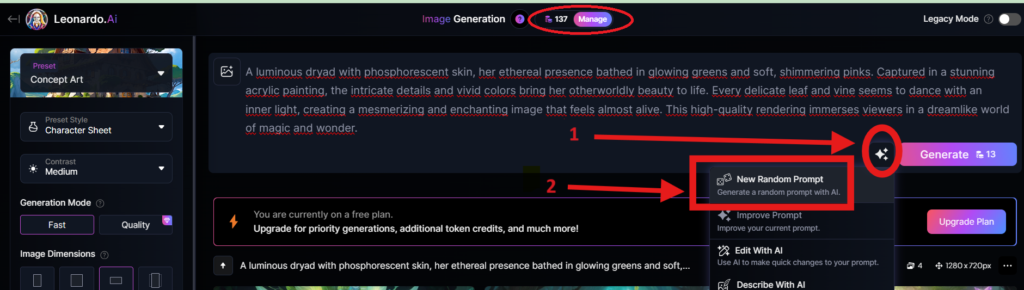
Wait about 20 seconds for Leonardo AI to generate the images, and you will receive four stunning high-resolution images as follows:
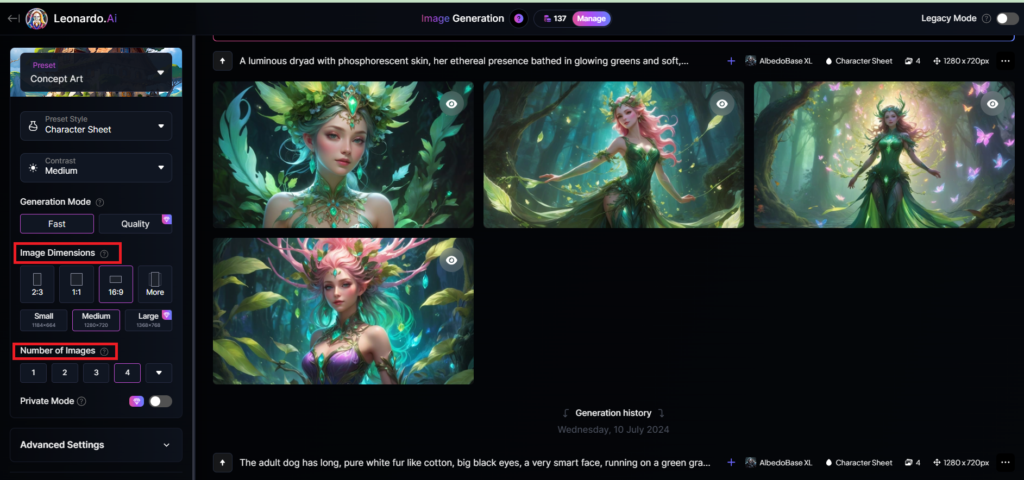
You can select the image size in the “Image Dimensions” section, which includes sizes like 2:3, 1:1, 16:9, and more options under “More” on the left. Alternatively, you can choose the number of images in the “Number of Images” section, with a maximum of 8 images that can be generated.
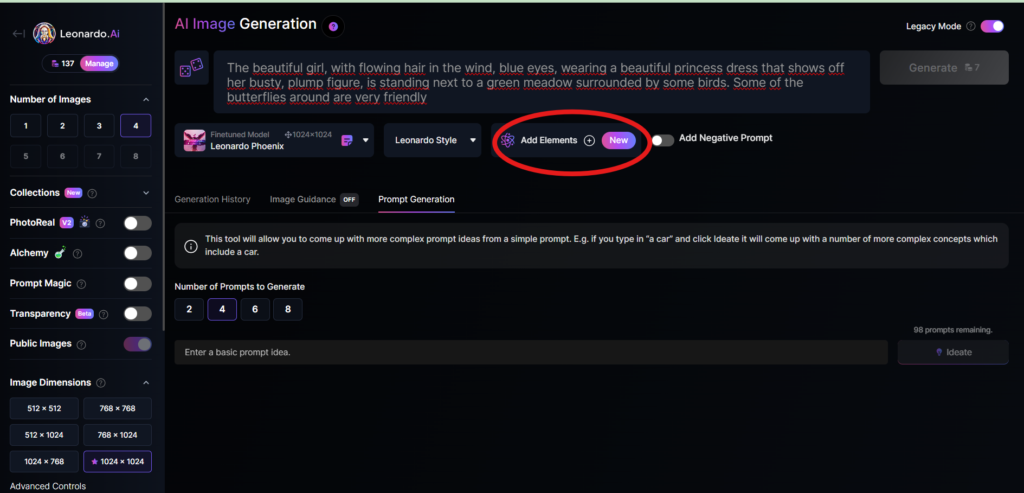
Add Elements
Use the drop-down menu under “Add Elements” to select a specific element such as Coloring Book, Folk Art Illustration, Children’s Illustration, Cartoon & Anime, or Classic Style Christmas Illustration. Although you can select multiple elements, Leonardo advises that choosing more than two elements may lead to unpredictable results.
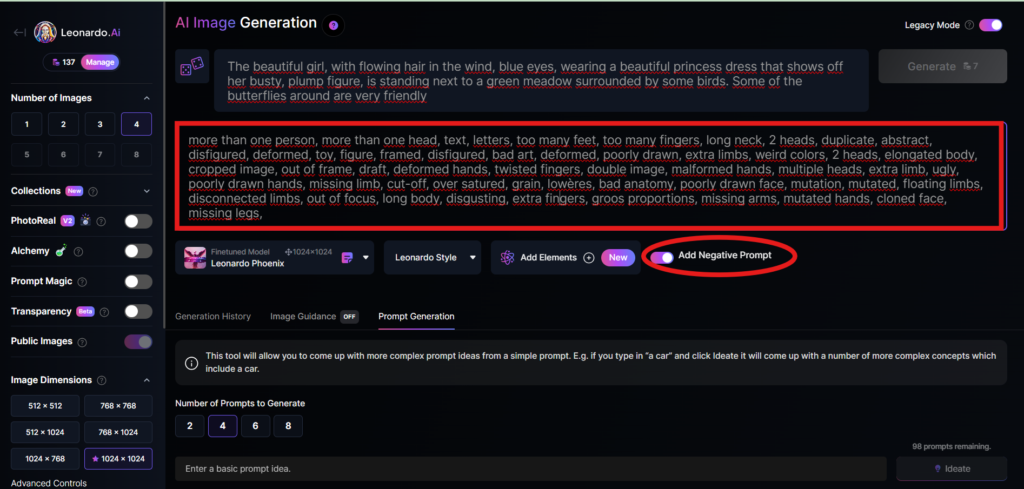
Add a negative prompt
As in the example above, I created negative prompts to ensure the resulting images were error-free, including: “more than one person, more than one head, text, letters, too many feet, too many fingers, long neck, 2 heads, duplicate, abstract, disfigured, deformed, toy, figure, framed, disfigured, bad art, deformed, poorly drawn, extra limbs, weird colors, 2 heads, elongated body, cropped image, out of frame, draft, deformed hands, twisted fingers, double image, malformed hands, multiple heads, extra limb, ugly, poorly drawn hands, missing limb, cut-off, over satured, grain, lowères, bad anatomy, poorly drawn face, mutation, mutated, floating limbs, disconnected limbs, out of focus, long body, disgusting, extra fingers, groos proportions, missing arms, mutated hands, cloned face, missing legs,”
Here are the basic steps for new users to create a simple image with Leonardo AI. In the next article, I will guide you through advanced details to create various types of images for different purposes. You can start your free trial with Leonardo AI here:

https://unityroom.com/users/90zqlmtxdov4fenjkcwi
Команда Имагос совмещает изготовление сайта под ключ, поддержка стабильности и сопровождение с отчетами по выполненным задачам для актуального ресурса. С учетом задач бизнеса.
http://www.fitday.com/fitness/forums/members/imagos.html
Команда Imagos берет на себя изготовление сайта, поддержка после запуска и сопровождение с обновлениями, правками и резервными копиями для аккуратного запуска. Для проектов после запуска.
https://hedgedoc.sysnove.net/s/qg15qfy5L
Hi there every one, here every one is sharing these
familiarity, thus it’s fastidious to read this website, and I used to visit this weblog every day.
Купить лирику без рецепта Купить Бошки Шишки Мефедрон Кокаин
casino online bonus bez depozytu niemcy – https://slonecznerejsy.pl do ktorej godziny mozna wyslac lotto
I’m truly enjoying the design and layout of your site. It’s a very
easy on the eyes which makes it much more enjoyable for me
to come here and visit more often. Did you hire out a designer
to create your theme? Fantastic work!
https://kostroma-hunter.ru/
Трамадол купить в москве Купить Бошки Шишки Мефедрон Кокаин
https://kuzovkirov.ru/
https://theexplorers.com/user?id=d9edd89a-9482-4da5-bc72-f92e90e9270d
Thanks for some other informative website. Where else could I am
getting that type of information written in such a perfect method?
I’ve a undertaking that I’m simply now running on, and I’ve been on the glance out for such info.
I’m now not certain the place you’re getting your info,
however good topic. I needs to spend some time learning more or figuring out more.
Thank you for excellent info I was searching for this
info for my mission.
https://gratisafhalen.be/author/milwaukeevwr39/
Thanks for sharing your thoughts on live sex. Regards
I’m really impressed with your writing skills as well as with the layout on your weblog.
Is this a paid theme or did you modify it yourself? Anyway keep
up the excellent quality writing, it is rare to see a nice blog like this one these days.
Greetings from Los angeles! I’m bored to death at work so I decided to browse your website on my iphone during lunch break.
I love the info you provide here and can’t wait to take a look when I get
home. I’m surprised at how fast your blog loaded on my phone ..
I’m not even using WIFI, just 3G .. Anyways, fantastic site!
https://schoolido.lu/user/sexuallyjvi626/
https://pad.riot-os.org/s/XPH4irvKLw
https://novyjgod.com/