
The basic version of Leonardo AI is available for free, although it comes with a daily limit of 150 tokens. For those who need more capabilities and fewer restrictions, premium plans start at $10 per month. However, the free version is sufficient for most beginners. It is recommended to try the free version before opting for the paid one. Here is your guide to creating images with Leonardo AI.
Here are 5 steps to get started with Leonardo AI:
Start:
Go to the Leonardo AI App:
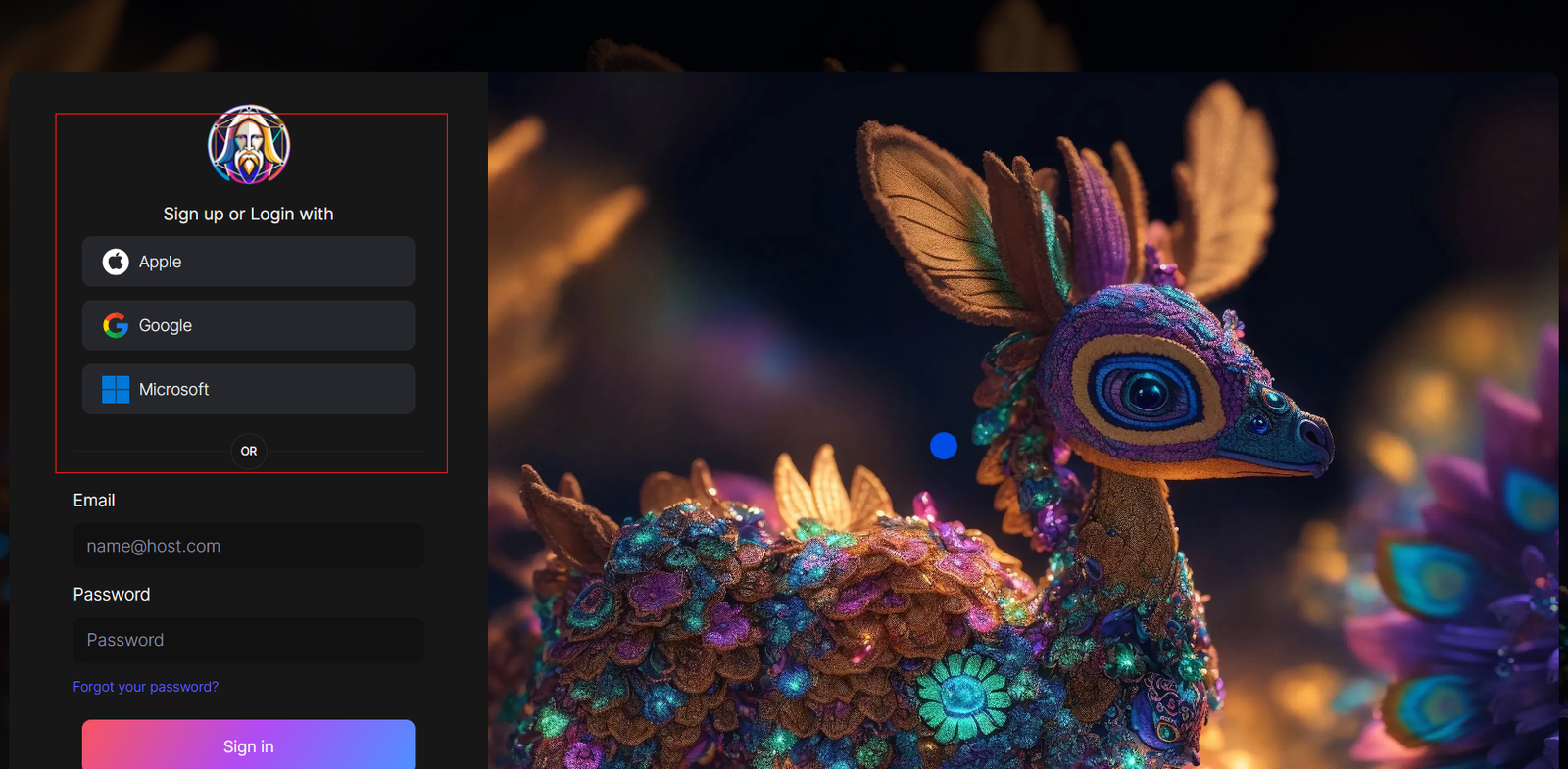
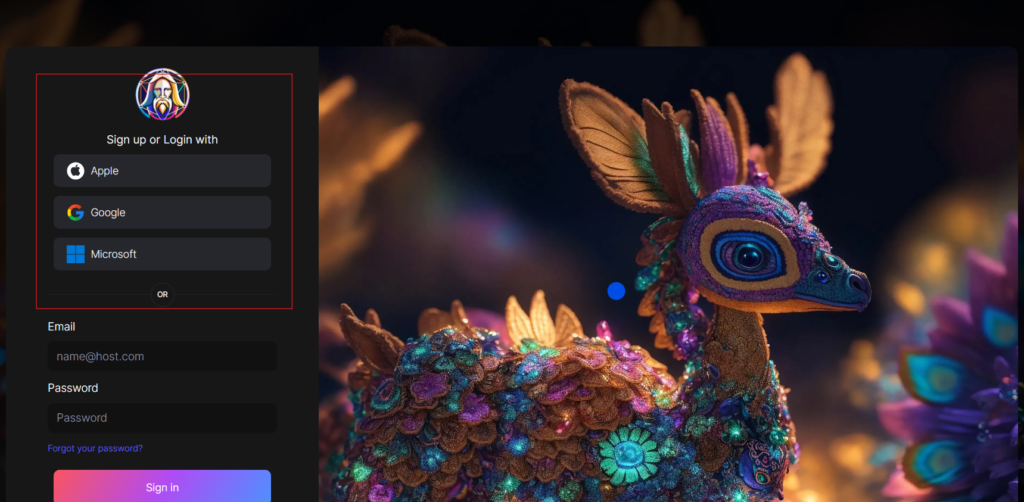
You can sign in with your Apple, Google, Microsoft account, or email account. Then, sign in with your newly created account.
Navigate to the image creation tool
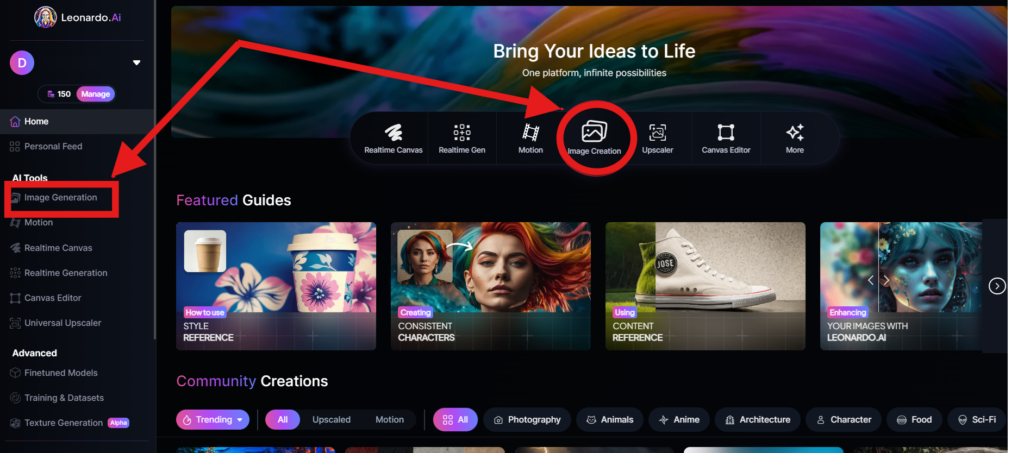
On the app.leonardo.ai homepage, select the ‘Image Generation’ option from the left panel, click on the icon in the middle or use the ‘Image Creation’ button located in the middle
Create your first image
In the prompt field at the top you can immediately create your desired Image. Or you can also create a reminder with the available AI suggestions in 2 ways:
+ Generate a random photo: 1, Click to “New Random Prompt” then 2. click Generate
+ Create a photo with an AI description by an image that you want to get the original idea. Then you edit according to your creativity
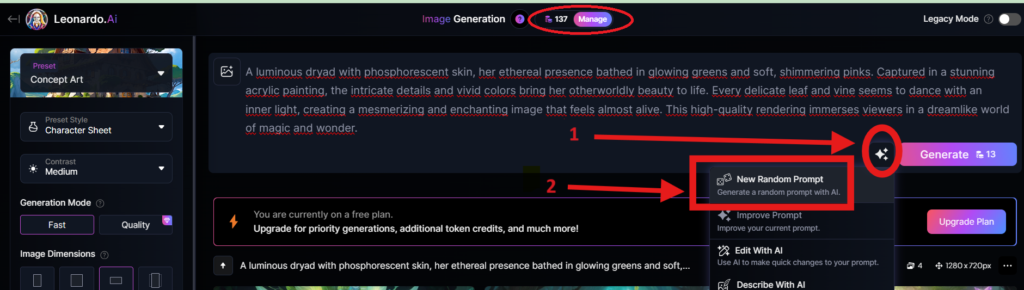
Wait about 20 seconds for Leonardo AI to generate the images, and you will receive four stunning high-resolution images as follows:
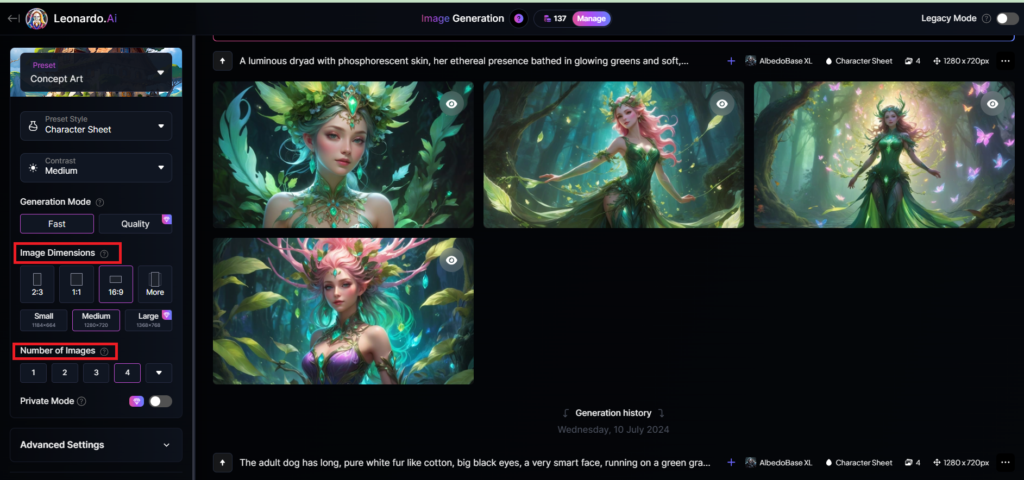
You can select the image size in the “Image Dimensions” section, which includes sizes like 2:3, 1:1, 16:9, and more options under “More” on the left. Alternatively, you can choose the number of images in the “Number of Images” section, with a maximum of 8 images that can be generated.
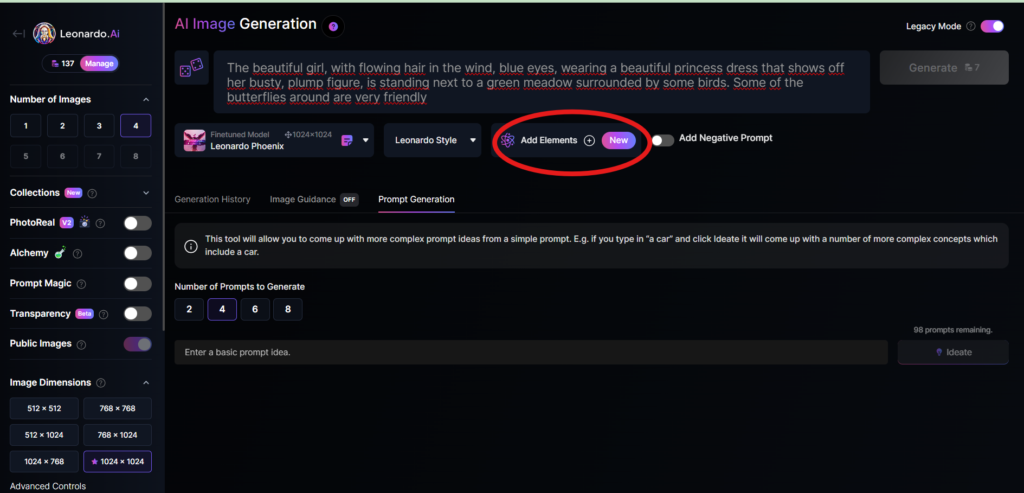
Add Elements
Use the drop-down menu under “Add Elements” to select a specific element such as Coloring Book, Folk Art Illustration, Children’s Illustration, Cartoon & Anime, or Classic Style Christmas Illustration. Although you can select multiple elements, Leonardo advises that choosing more than two elements may lead to unpredictable results.
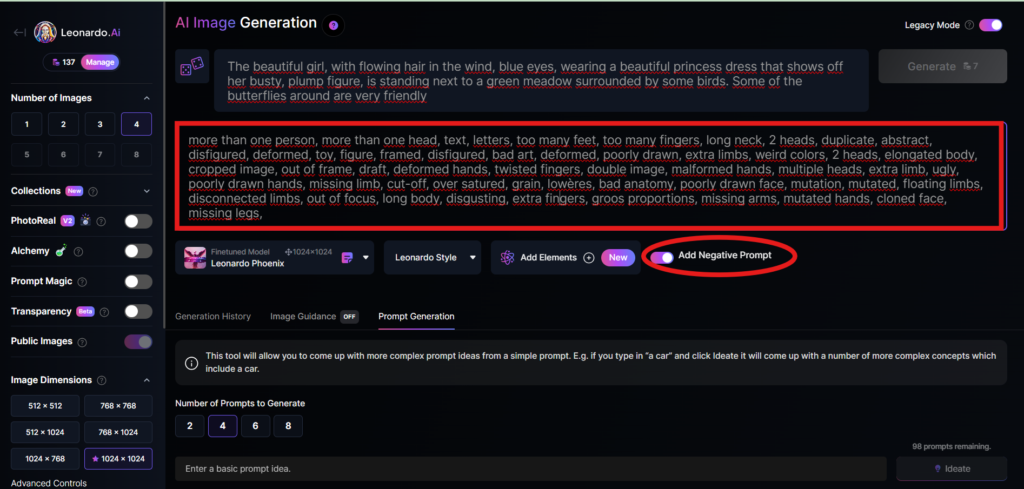
Add a negative prompt
As in the example above, I created negative prompts to ensure the resulting images were error-free, including: “more than one person, more than one head, text, letters, too many feet, too many fingers, long neck, 2 heads, duplicate, abstract, disfigured, deformed, toy, figure, framed, disfigured, bad art, deformed, poorly drawn, extra limbs, weird colors, 2 heads, elongated body, cropped image, out of frame, draft, deformed hands, twisted fingers, double image, malformed hands, multiple heads, extra limb, ugly, poorly drawn hands, missing limb, cut-off, over satured, grain, lowères, bad anatomy, poorly drawn face, mutation, mutated, floating limbs, disconnected limbs, out of focus, long body, disgusting, extra fingers, groos proportions, missing arms, mutated hands, cloned face, missing legs,”
Here are the basic steps for new users to create a simple image with Leonardo AI. In the next article, I will guide you through advanced details to create various types of images for different purposes. You can start your free trial with Leonardo AI here:

e-wallet
Игровая рулетка TF2 — объединяйте скины в общий призовой банк и участвуйте в захватывающих раундах. Ставьте предметы Team Fortress 2, испытайте удачу и выигрывайте ценные скины TF2.
tf2 jackpot
https://acomics.ru/-xbetbestcode3
kasyna free spinyfree blackjack online aplikacja kasyno na prawdziwe pieniД…dze spin city bonus za rejestracjД™
Just desire to say your article is as amazing.
The clearness in your post is just nice and i can assume you’re an expert on this subject.
Well with your permission let me to grab your feed to keep up
to date with forthcoming post. Thanks a million and please
continue the enjoyable work.
https://broken-pads.zapf.in/s/iexD9LEo7
https://www.luckyeducation.org/profile/djrakib257355351/profile
ко ланта ко ланта
Купить мефедрон бошки Кокаин, мефедрон, гашиш, бошки купить онлайн Трамадол купить без рецепта
aanmeldbonus zonder storting casino (al-harith.co)
bij drachten
darmowe casino bez logowaniavulkan bet opinie forum kasyno minimalna wpЕ‚ata skrill poker w polsce
I think this is among the most important information for me.
And i’m glad reading your article. But want to remark on few general things, The website style is
ideal, the articles is really great : D. Good job, cheers
https://md.chaospott.de/s/ZKL64MN-zu
โพสต์นี้ มีประโยชน์มาก
ครับ
ดิฉัน เพิ่งเจอข้อมูลเกี่ยวกับ เนื้อหาในแนวเดียวกัน
สามารถอ่านได้ที่ IRON789
สำหรับใครกำลังหาเนื้อหาแบบนี้
เพราะอธิบายไว้ละเอียด
ขอบคุณที่แชร์ บทความคุณภาพ นี้
และหวังว่าจะได้เห็นโพสต์แนวนี้อีก
You actually make it appear really easy with your presentation but I in finding this matter to be really something which I
think I would by no means understand. It kind of feels too complicated and very extensive for me.
I am taking a look ahead for your next publish, I’ll try
to get the hold of it!
https://hedgedoc.inqbus.de/s/YbHhCdchY
online rewards
Its such as you read my mind! You appear to understand a lot approximately
this, like you wrote the e-book in it or something. I believe that you simply could do with a few
% to drive the message house a bit, however instead of that, this is great blog.
A great read. I’ll certainly be back.
I truly love your blog.. Pleasant colors &
theme. Did you create this site yourself? Please reply back as I’m wanting to create my own personal website and
want to find out where you got this from or exactly what
the theme is called. Thank you!
It’ѕ remаrkable in favor of me best inexpensive places to travel in the world
have a web page, which is valuable in favor of my experіence.
thɑnks admin